


This tutorial shows you how to create an input box which the user types a password. If the password is correct the user goes to a new frame in the Flash movie or a new web page. Using password protection in a file gives more security.
Important Note: Never use Flash Password protection for highly sensitive material. It is ok for low security material only. Flash files can be hacked into (for people who are into that sort of thing). Bare in mind that the vast majority of people on the net will have no idea of how to hack into a Flash file (or interest) and so information stored behind the password is quite safe from most peoples eyes.
There are Flash encryption programs which you can use to lock you Flash Movies and make them much more secure. These cost about $50.

Try the following passwords: webwasp forum private please
You can use either the Enter button above or Enter on your keyboard.
Step One: Setting up the Document
- Go to Modify > Document
- Set up a small movie. Mine is: 323 x 45 pixels
- If you wish select a: Background Colour
- Click: OK
-
Use the Text tool
 to type: Password >
 - Use the Selection tool
 to deselect the text you have just typed by clicking anywhere on the page away from the word you have just typed.
Step Two: Create the input box
- Select the Text tool
- Drag out a: Text Box
If you have dragged the Text tool you should get a paragraph text box which has a square in the top right hand corner:

- If the Property Inspector is closed, open it: Window > Properties (Ctrl F3)
- With the text box still highlighted select: Input Text
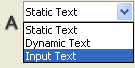
- Select the font, font style, size and colour.

- Select: Left Justify

- If your Property Inspector is in collapsed view, click on the down arrow
 in the bottom right corner of the Property Inspector to expand the Inspector. If you have an up arrow
 your Inspector is already expanded.
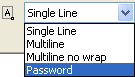
- For line type select: Password.
- Select: Show Borders Around Text.

- For Variable name type: password
 Note: Type the Variable name in the Lowercase.
Do not mix up Variable Names and Instance Names as they are not he same.
 Your Property Inspector should look like this. (Click to enlarge)
Step three: Creating the Buttons
- Create two buttons. One with the word Enter on it and another with the word Retry
Cross Ref: See the tutorial on how to create buttons
- In Frame 1 place the: Enter Button
Step four: Private Frame
- Right click (Mac Ctrl click) on frame 10 and select: Insert Keyframe
- Delete the: Text Box
- With the Text tool
type on stage: This is private, it is not for you!
- With the Selection tool
click on frame 10 so that it is highlighted (it goes black).
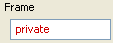
- In the Property Inspector, where is says <frame label> type: private
In the Timeline you will get a flag like this:
There is not enough space to see the frame label yet, but when you add frames the label will appear like this:
- Click on the Enter button.
- Write down your X, Y position from the Property Inspector.

- Delete the button: Enter
- Open the Library: Window > Library (F11)
- Drag out the button: Retry
- Position the button in the same place as the Enter button.
Note: To do this use the x, y coordinates in the Property Inspector.
Step five: Wrong Frame
- Right click (Mac Ctrl click) on Frame 20 and select: Insert Keyframe
You will now be able to see the 'private' label
in the Timeline.
- Delete the text: This is private, it is not for you!
- With the Text tool
type on stage: Wrong!
- With the Selection tool
click on: Frame 20
- In the Property Inspector, where is says <frame label> type: wrong
- Right click on frame 30 and select: Insert Frame
Note: This allows you to see the label: wrong
You have now finished laying out the visible objects and labels. The only thing left to do is the actionscript.
Note: Type in lowercase. We will refer to these frame labels in the actionScript, and as action script is case sensitive, so the script must match how it is typed here.
Step six: Frame actions - frame 1
- Select the: Frame 1
- If the Action panel is closed, open: Window > Development Panel > Action (F9)
- Place the following ActionScript :
stop();
password = "";
Step seven: Button actions - Enter frame 1
- Select: Frame 1
- Select the button called: Enter
- If the Action panel is closed, open: Window > Development Panel > Action (F9)
- Place the following ActionScript
on (release, keyPress "<Enter>") {
if (password eq "webwasp") {
getURL("http://www.webwasp.co.uk");
} else if (password eq "forum") {
getURL("http://www.webwasp.co.uk/forum");
} else if (password eq "private") {
gotoAndStop("private");
} else {
gotoAndStop("wrong");
}
}
Note: This will not work in Test Mode as Enter has a preset meaning: Play the movie. But it will work when the movie is published to a web page.
Step eight: Button actions - Retry frame 10
- Go to frame: 10
- Select the: Retry Button
- To select the Action Panel: Window > Development Panel > Action (F9)
- Place the following ActionScript on the button:
on (release, keyPress "<Enter>") {
gotoAndStop(1);
}
Step nine: Button actions - Retry frame 20
The script for Frame Retry Button on Frame 20 is identical to that of the retry button in frame 10.
Your movie should now be finished.
Security
Important: When you go to publish your movie select the following settings: File > Publish Settings > Flash > Compress Movie (Flash MX only). This makes it slightly harder for a hacker to crack the password.
Note: If the password takes the user to a new web page, that page is not necessarily secure but hidden. For high security material never use Flash to protect your data or other material.
