


Timeline effects are a new feature of Flash MX 2004. They are designed to enable you to animate quickly without all the hassle of Keyframes and Tweening. It is easy and fast to create animation with Timeline Effects. This makes animation possible for the beginner and it makes animating much, much easier and faster for the pros.
So the advantage of animating with Timeline effects is that it is easy, quick and you don't need a lot of technical knowledge. Many beginners find Keyframes, Tweening and Nesting confusing. Timeline Effects by-pass all of this opening up the world of Flash animation to the beginner. The disadvantage of Timeline Effects is that you do not have the same level of control that you would if you were animating through the use of techniques such as tweening. Having said that Timeline Effects are a very powerfully tool and you can have a lot of fun working with them.
In this tutorial I will describe how to achieve the above Timeline Effect.
The full range of Timeline Effects are:
- Copy to Grid
- Distributed Duplicate
- Blur
- Drop Shadow
- Expand
- Explode
- Transform
- Transition
I am only going to demonstrate the Explode Effect. The techniques used are the same irrespective of which Effect you create. So once you are familiar with one the others are all very similar.
Step one: Setting Up the Document
Note: Timeline effects were introduced with Flash MX 2004 and this will not work in older versions of Flash.
- Open a new: Flash Movie
- Go to: Modify > Document (Ctrl J)
- Set the size to: 500 x 200 pixels
- If you wish select a: Background Colour
- Click: OK
- Select the Text Tool:

- Click on the Stage and type a word such as: webwasp
- Return to the standard Selection Tool:

- If the Property Inspector closed, open it: Window > Property (Ctrl F3)
- With the Text still highlighted select any Font Styles that you may want. Mine Text settings looked like this:
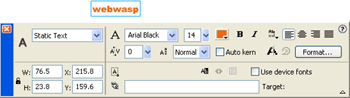 Text Settings in the Property Inspector. (Click to enlarge)
Note: Although I have used text in this example the Timeline Effects will work just as well with Buttons, Movie Clips, Graphic Symbols, Drawings, Clip Art or most other types of objects you can use in Flash.
Step two: Creating the Effect
- If the Text is not selected: Select the Text
- Go to: Insert > Timeline Effects > Effects > Explode
Note: Your computer may appear to 'hang' for a short while before you see the dialog box. Although Effects are easy for you to do they not so easy for Flash and it may take a moment or two for the program to make the calculations and the screen to update.
You should see something similar to this:
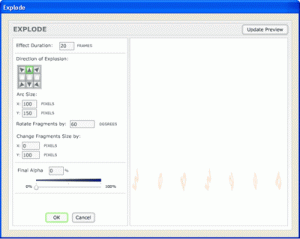 The Explode Effect Dialogue Box. (Click to enlarge)
- Play with the settings on the left and then to see the effect click the Update Preview button:

- When you are satisfied with the effect click: OK

You can see just how quick it is to achieve this explosion. To do it with Tweens would involve dividing the Timeline up into seven different Layers and Tweening each letter individually. This way it is all done with just a few clicks.
The Timeline
You may have noticed that the Effect has automatically placed several frames in the timeline. These frames are not marked any any special way (unlike a Tween):

Note: The one criticism that I have is that the Effect is not marked in any special way. It appears just like any other section of the Timeline and as you will see in a moment it reacts differently to other sections of the Timeline.
Tip: It is quite possible to mark the Timeline yourself so that it will be easier to find the Effect latter.

To place a comment in the Timeline select the Keyframe (Black Dot) and in the Property Inspector type something like this:
// Effect: Explode
Tip: Always start to type your comments with the Double Slash: //
That way Flash knows that it is a comment for a person to read and will ignore it. It will also not effect the size of the final published Movie.
Editing the Effect
There are two ways of editing an Effect:
- Return to the Effect's Dialog Box
- Editing the animation's nested symbols
Editing the Effect: Via the Dialog Box
- Select the Object you wish to Edit
- In the Property Inspector select: Edit
 The Edit button in the Property Inspector.
This will take you back to the Dialog Box that you used to create the Effect in the first place. You can then change anything you wish. When you are finished click OK.
You can also access the Dialog box like this:
- Select the Object you wish to Edit
- Go to: Modify > Timeline Effects > Edit Effects
Editing the Effect: Via the Nested Symbols
Normally if you double click on a symbol you can start to Edit inside the Symbol. With a Timeline effect this function is locked. But you can access the Symbol through the Context menu.
Right Click (Mac: Ctrl click) and select one of these:- Edit
- Edit in Place
- Edit in a New Window
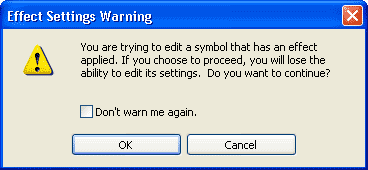
You will notice that this warning is very draconian (typical computer). It warns you that if you proceed you will not be able to Edit the Effect via the Effects Dialog box again and that this is irreversible. Well it is not all that bad - remember it only took a few moments to create the Effect in the first place so it is not such a disaster. As long as you are familiar with Tweening and editing Nested Symbols yo will be fine so be brave and click OK.
When you click: OK
You will see something similar to this in your Timeline:
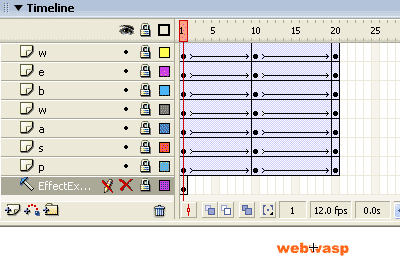
If you wanted to create an animation like this you would have to create a Tween for each letter and each of these must be in it's own Layer. Well that is exactly what you will find nested inside the Effect.
If you look in the Library: Window > Library (F11)
You will find all the symbols just as if yo had created the Animation without the use of the Effects dialog box:
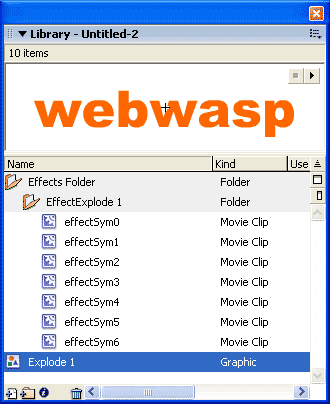
I find the fact that you can convert the Effects into standard Flash Tweens very useful. This is a really good short cut tool. If I want to animate a sentence and each letter has to come and go in a different direction it would take me ages to set up the stage. This way I can run the text through the Effects filter and all my Symbols, Layers, Tweens and Keyframes are done. I just need to move Edit them.
Well I hope you have fun with the Flash Effects - I personally think they are great. Enjoy.
