


The aim of the tutorial is to learn how to create a magnifying glass using a very simple piece of code. You will also learn how to attach several Movie clips to the mouse, some move with the mouse and others move in the opposite direction to the mouse. You will also learn how to use masks in Flash MX.
Step one: Creating the image you want to magnify
Before you can start you will need something to magnify. This could be a bitmap image such as a Jpeg or Gif. It could also be a vector based image created with the typing or drawing tools in Flash (or in a Graphics program like Freehand, Illustrator, or CorelDraw). The vector based images are best because the file sizes are so small. Having said that they take more time to create as you have to draw every detail.
I have taken the easy root and scanned a map using PhotoShop and then saved it as a Jpeg. Quick and easy but the files size is big: nearly 200kb.
If I was concerned with the file size I could of imported the scanned picture into a Graphics program and re-created the file before I started to create my magnifying glass in Flash. I would expect the graphics file to be about 10 or 20kb (once imported to Flash) rather than 200kb. A major difference.
Of course you can do this with a map but if you are using the magnifying glass on a photo, you have to stick to the Jpeg.
The measurements of the image has to be quite large. Mine is 1200 pixels wide x 1000 pixels high. This is much taller and wider than most pictures that would be used on a web page (hence the 200KB). The reason for this is so that when magnified there is plenty of detail to look at.
Or: Create your own image. For the tutorial I recommend that you stick to the same size: 1200 x 1000 pixels
Step two: Setting up the Flash file
- Open a new Flash file.
- Go to: Modify > Document
Set the document size to: 480 x 400 pixels
- Go to: File > Import
Browse to the Jpeg/Gif file that you wish to use.
Your Jpeg should now be on stage. If it is not on Stage it will be in your Library - Drag it onto stage.
Note: If you are using an image from a graphics program you can copy and paste it into Flash.
- The magnification on my example above is 2 1/2 times or 250%. So the picture
that I need on stage needs to be 250% smaller.
1200 / 2.5 = 480 px - new width
1000 / 2.5 = 400 px - new height
In the Property inspector resize the image to: 480 x 400 pixels.
Important Note: This is the same as the document size (see point 2 above).
- In the Property inspector place the image at: X = 0, Y = 0
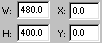 Your Property inspector should have these details.
- Rename the layer: Small Map
The map is now ready to be magnified.
Step three: Preparing the Magnifying Glass
- Create a new Layer and call it: Big Map
- Go to: Insert > New Symbol
Name: My Big Map
Behavior: Movie Clip
- Drag the Jpeg of the map into the new symbol.
- As before place the image at: X = 0, Y = 0
This time you do not reduce the size of the image. This is what we are going to see in the Property Inspector:
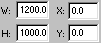 Note the the image is still 1200 x 1000 px.
- Go back to the main stage and drag the new movie clip from the library
and place it on the main stage.
This movie clip must be in the new layer: Big map
Note: The large map does not need to be on top of the smaller map but can be shunted off to the side of the stage. This makes it easier to work with.
- In the Property inspector give this movie clip an instance name: myMap
-
Attach the following ActionScript to the new movie clip:
onClipEvent (enterFrame) {
_root.myMap._x = (_root._xmouse * -1.5);
_root.myMap._y = (_root._ymouse * -1.5);
}
This little bit of code is the key:
Line 1: onClipEvent (enterFrame) {
Do this every time the play head hits the frame. Normally 12 times per second.
Line 2: _root.myMap._x = (_root._xmouse * -1.5);
The x position of the map moves in the opposite direction to the mouse times 1.5
Line 3: _root.myMap._y = (_root._ymouse * -1.5);
Same as line 2 but for the Y axis.
Remember that the large picture is bigger than the visible stage by 2.5 times. So it will stick to the mouse position but also move more that the mouse by 1.5 times. This at first seems curious but let me explain:
If your mouse is on x position zero so is the picture (0 x -1.5 = 0).
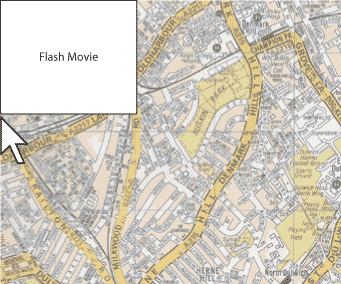 Both mouse and map on _x zero.
If your mouse is on _x position 480 (on the far right of the movie) the mouse has moved 480 pixels to the right.
The picture moves 720 pixels to the left (480 x -1.5 = -720).
The total mouse + picture move 1200 pixels (480 + 720 = 1200)
This is why we get a magnification of 2.5 times (480 x 2.5 = 1200).
Think of it like this: The mouse moves 1 part, the picture moves 1.5 parts, total 1 +1.5 = 2.5 parts/magnification.
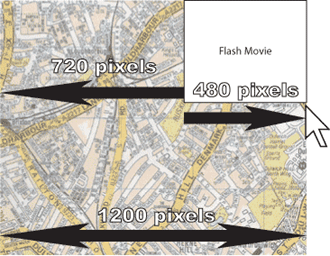 This illustrates the _x (sideways) movement only.
Note: Whatever the magnification you multiply by one number less, because the cursor always moves once across the screen.
If I wanted a magnification of 3 times the code would look like this:
_root.myMap._x = (_root._xmouse * -2);
_root.myMap._y = (_root._ymouse * -2);
Note: If the magnification was 3 times, the large map would also have to be bigger or the small map (and the Flash document) smaller.
Step four: The Glass
Now we will hide the big map, except for the glass area.
- Create a new layer above the Big map layer called: Glass
- Draw a circle in this layer with a diameter of about: 145 pixels
- With your Arrow tool select the outside stroke of the circle.
 Stroke selected
- Go to: Edit > Cut
Note: You will paste the stroke later to create the glass rim.
- Right click (Mac Ctrl Click) on the inside of the circle and convert it
to a Symbol.
Name: Circle
Behavior: Movie Clip
Note: The advantage of creating the movie clip this way is that the circle will be exactly centered in the movie clip and we need this.
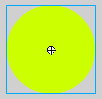 Instance of circle on stage with a centered registration point.
- Give the circle a Instance name: myCircle
- Add the following code to the circle:
onClipEvent (enterFrame) {
_root.myCircle._x = (_root._xmouse);
_root.myCircle._y = (_root._ymouse);
}
The ActionScript is almost identical but this time the circle will stick to the cursor and move with the mouse. There is no: *-1.5
- Right click on the Layer name: Circle
Select: Mask
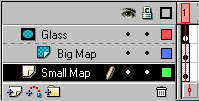 Your layers should look like this.
Note: The layer stacking order is critical.
It is probable a good time to save and test your movie, as all the main parts of the magnifying glass are done.
Step five: The Glass Rim
- Create a new Layer above your Circle Layer called: Glass Rim
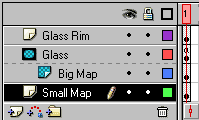
Note: It is important that the glass rim is in its own layer, otherwise the mask may fail to work correctly or the rim may not be visible.
- If you cut the outside stroke from the circle above (step 4.3) it should
still be in the computer memory.
Go to: Edit > Paste
 If you do not have the outside of the circle in the memory you will need to draw one. Remember to delete the centre or you will not see the magnifying glass underneath!
- Right click on the rim and convert it to a Symbol.
Name: Rim
Behavior: Movie Clip
- Give the circle a Instance name: myRim
- Attach the following code onto the movie clip:
onClipEvent (enterFrame) {
_root.myRim._x = (_root._xmouse);
_root.myRim._y = (_root._ymouse);
}
Note: You cannot use the following code:
onClipEvent (enterFrame) {
startDrag("");
}
With startDrag you can only attach one object to the mouse and as we need to attach the rim and the mask startDrag will not work.
Step five: The Mouse Cursor - Removed
Your magnifying glass should be ready to roll. Having said that there is just one addition that you may want:
To make the standard arrow cursor disappear so that you can see the magnification detail better, place this code in any of the key frames in the time line:| Mouse.hide(); |
