

IMPORTANT: This only works in flash mx and not flash mx 2004 because of some unknown bug in flash mx 2004.
The aim of the tutorial is to learn how to create a Flash Movie which loads an Array of external images such as Jpegs or Gifs. These images would then be loaded individually into the Flash Movie as and when the user wished to look at them. This makes the Flash Movie much smaller and reduces the pre-load time for the Flash Movie. The individual images would each have there own pre-loader so that there is a small delay before loading individual images but no long wait at the beginning of the Movie.
Below is the Movie you will learn to create in this Tutorial.
Cross Ref: You may wish to read this tutorial first so that you know how to build and use Preloaders: Preloader
Step one: Setting up the Flash Movie
- Open a new: Flash Movie
- Go to: Modify > Document
- Set the Movie to: 550 x 400
- Click: OK
- In the Timeline use the Insert Layer button
 to
add 6 layers so you have a total of: 7 Layers
to
add 6 layers so you have a total of: 7 Layers - Rename Layer 7 to: ActionScript
- Rename Layer 6 to: Timer Loader
- Rename Layer 5 to: Messages
- Rename Layer 4 to: Loader
- Rename Layer 3 to: Movie Holder
- Rename Layer 2 to: Border
- Rename Layer 1 to: Buttons
You should now see this in the Timeline:
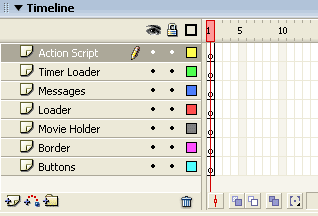 All the Layers on the Main Stage.
Step two: Setting up the Buttons
The buttons enable the user to browse forward and backwards through the images.
The Next Button
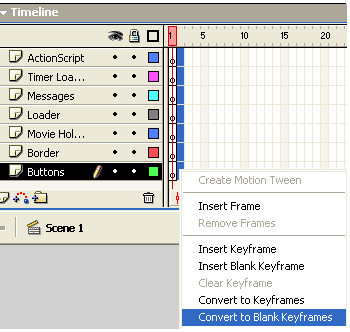
- Select Frame 2 on all the layers and
- Right click in the time line
- Select Insert Blank Keyframe like so
- Select Frame 3 on all the layers and
- Right click in the time line
- Select Insert Blank Keyframe
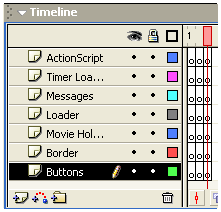
- You should have this:
- Select Frame 2 of the Layer: ActionScript
- Add this code to that frame:
// Get how much of the movie has loaded so far and compare it to how much of the movie has to be loaded
if (this.getBytesLoaded()>=this.getBytesTotal()) {
// If the movie has fully loaded then go to and stop at the next frame
gotoAndStop(3);
// If the movie hasn't fully loaded
} else {
// Then go back to frame 1 and play from frame 1 to check again
gotoAndPlay(1);
}
- Select Frame 3 of the Layer: Buttons
- Create a button and position it the bottom right of the Stage: Create a Button
- Right click on button and select: Edit
- Use your Text Tool
 to
give your button a text label: Next
to
give your button a text label: Next
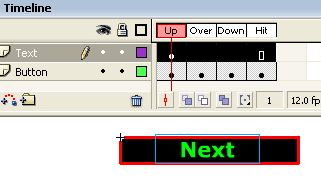 The Text Layer contains the Button Label: Next
 My Button.
- Go back to using the: Selection Tool

- If the Edit Bar is closed, open it (Flash MX 2004 only): Window > Toolbars > Edit bar
- Return to the Main Stage by clicking on the Scene 1 button in the Edit
Bar:

- Add this ActionScript to the button:
- On the bottom left of the Stage: Create another Button
- This button should have the text label: Previous
 My second Button.
- Add this ActionScript to the button
Notes:
If you wish you can drag one out of the Common Library. For Flash MX 2004: Window > Other Panels> Common Libraries > Buttons
For older versions of Flash: Window > Common Libraries > Buttons
If you use a Common Library button do not use any of the Components, Knobs or Fader buttons.It is important that any button text is actually inside the button itself, that way if the button is hidden the button text will be hidden too. To edit your Button right click (Mac: Ctrl click) and select: Edit
Note: For earlier versions of Flash the Edit Bar is visible when the Tools are visible: Window > Tools
// On mouse down do the following
on (press) {
// Call the function named: Next
Next();
}
The Previous Button
// On mouse down do the following
on (press) {
// Call the function named: Previous
Previous();
}
Step three: Creating a Message Display Box
On the Main Stage is a message box that is used to tell the user that they have arrived at the beginning or end of the list of images.
- Select Frame 3 of the Layer: Messages
- Select the Text Tool:
- Drag a Text box onto the stage: Text Box
- If the Property Inspector is closed, open it: Window > Properties (Ctrl F3)
- In the Property Inspector set the Text Box to: Dynamic Text
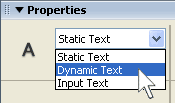 Selecting Dynamic Text from the Property Inspector.
- If the Show Border Around Text is selected, deselect it:

- Give the Text Box a Variable Name (Var): MessageDisplay
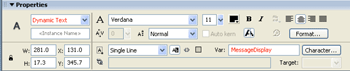 Don't get the Variable Name (Var) mixed up with the Instance Name! Note there is no Instance Name. (Click to enlarge)
- Return to the Selection Tool:
- Move your Message Box towards the: Centre Bottom of the Stage
Step four: Creating the Movie Border
The border goes around the outside edge of the Flash Movie. It is not an an essential part of this Movie and you can skip this section and move to the next step if you wish.
- Select the Frame 3 on layer: Border
- With the Rectangle Tool
 draw
a border around the Main Stage of your Movie: Draw a Border
draw
a border around the Main Stage of your Movie: Draw a Border - Return to the Selection Tool:
- Click in the centre of the rectangle and press: Delete
Step five: Creating a Progress Bar
The progress bar is the small black bar that expands giving you a visual representation of the percentage of the Movie (or in this case image) that is loading. It looks something like this:
Progress Bar.
- Go to: Insert > New Symbol (Ctrl F8)
- For Name type: Bar
- For Behavior select: Movie Clip
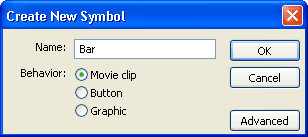
- Click: OK
- In the Timeline use the Insert Layer button to
add 1 layer so you have a total of: 2 Layers
- Rename layer 1 to: Border
- Rename layer 2 to: Progress Bar
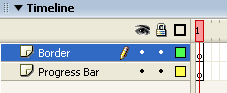 The Layers.
- Select Frame 1 of the: Border Layer
- Select the Rectangle Tool and
: Draw a Rectangle
- Return to the Selection Tool:
- Click in the centre of the rectangle and press: Delete
- Select the outline by double clicking on the: Stroke (Rectangle Outline)
- In the Property Inspector set its width to: 102.0
- Set its height to: 6.0
- In the Timeline Lock
 the:Border
Layer
the:Border
Layer
 Your rectangle should look similar to this.
- Select Frame 1 of the: Progress Bar Layer
- Select the Rectangle Tool and: Draw
a Rectangle
- Return to the Selection Tool:
- Click in the centre of the rectangle to select the: Fill
- In the Property Inspector change the Fill colour of the rectangle to: Black (or anything you like)
- Double click on the outline Stroke (border) and press: Delete
- In the Property Inspector set its width to: 10
- Set its height to: 3
- Then position it inside the border like so:
Note: You may need to Zoom In:
 Black Rectangle positioned inside the border.
- Right Click on the black rectangle in the Progress Bar Layer and select: Convert to Symbol
- Give it a Name: Loading bar
- For Behavior select: Movie Clip
- For Registration select centre left:

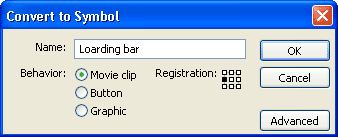
- Click: OK
- In the Property Inspector give the new Movie Clip the Instance Name of: ba
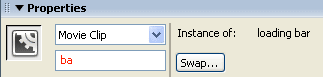 The Instance Name in the Property Inspector.
 - Select the Loading bar Movie Clip and add the following code(if you wish leave out the gray comments):
- The Progress Bar is now complete so click on the Scene 1 Tab to return
to the Main Stage:
Note: The Instance Name and Movie Clip Names are different. It is always the Instance Name that is important. Remember that Instance Names are case sensitive and must not start with a number or contain spaces. The Movie Clips name can be anything you want (as long as each Movie Clip has it's own unique name). Instance Names do not need to be unique.
Progress Bar ActionScript
You now have to add some code to the Loading bar Movie Clip. What this does is control the width of the bar. So that as more of the object loads the the wider bar becomes. The bars width will match the percentage. If 50% has loaded then the bar will be 50 pixels wide etc.
Cross Reference: The comments below are very brief and if you don't understand how the code works I suggest you look at one of the preloader tutorials where you will find a more in depth explanation as to how preloader work: Preloaders.
// When the Flash Movie loads do the following...
onClipEvent (load) {
// Call the following function
function follow(source, target, percent) {
/* Set the variable vector equal to the percentage of the content being loaded and minus current width of this move clip. */
vector = (source-target);
// Set the desp variable equal to the vector variable times by the percent which is the percentage loaded
desp = (vector*percent);
// Return the amount loaded
return (source-desp);
// Reset the target value
dd.target = 0;
// Close the function
}
// Close the above Clip Event
}
// When this Movie Clip enters the frame (every 1/12th of a sec) do...
onClipEvent (enterFrame) {
// Call the function from above to re sets this Movie Clip's width
this._width = follow(this._width, target, .2);
}
Step six: Creating the Preloader Movie Clip
The Progress Bar that you have just created is part of another Movie Clip which controls all the image preloading and displays the Progress Bar and other info such as the percentage loaded:
- Go to: Insert > New Symbol
- Name the new symbol: preloaderloader
- For Behavior select: Movie Clip
- Click: OK
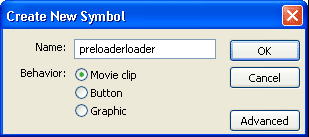
- Add 2 Layers so that you have a total of: 3 Layers
- Rename Layer 1 to: ActionScript
- Rename Layer 2 to: Text
- Rename Layer 3 to: Progress
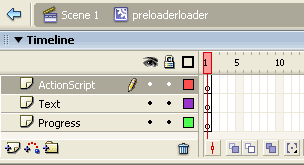 Layers inside the preloaderloader.
The ActionScript Layer
- Select Frame 1 of the ActionScript Layer and add this code:
- On the ActionScript Layer right click on Frame 3 and select: Insert Blank Keyframe
- Add this code to this new Frame (miss out the gray comments if you wish):
- On Frame 5 of the ActionScript Layer right click select: Insert Blank Keyframe
- Add this ActionScript to the new frame:
- On the Text Layer right click on Frame 2 and select: Insert Blank Keyframe
- Select the Text Tool:
- Drag a Text Tool on the stage to create a: Text Box
- Return to using the Selection Tool:
- Move the Text Box to the: Centre of the Stage
- If the Property Inspector is closed, open it: Window > Properties (Ctrl F3)
- In the Property Inspector set the Text Box to: Dynamic Text
- If the Show Border Around Text is selected, deselect
it:
- Give the Text Box a Variable Name (Var): DisplayProgress
 Don't get the Variable Name (Var) mixed up with the Instance Name! (Click to enlarge)
- On the Text Layer right click on Frame 3 and
choose: Insert Frame (Not a Keyframe)
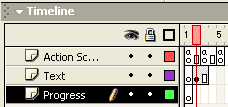 The Timeline should now look like this. The Text Layer is now Finished.
The Progress Layer
- On the Progress Layer right click on Frame 2 and choose: Convert to Blank Keyframe
- Open the Library: Window > Library (F11)
- Drag onto Stage your Movie Clip: Bar
- Place it just above the Text Box like this:
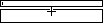 The Bar is just above the Text Box.
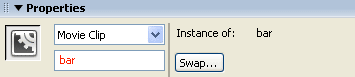
- In the Property inspector give the Bar Movie Clip an Instance
Name: bar
- On the Progress Layer right click on Frame 3 and
choose: Insert Frame (Not a Keyframe)
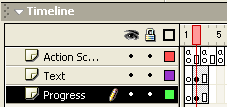 Your Timeline should now look like this.
- The Preloader is now ready to be placed on to the Main Stage. In the Edit
Bar click on the Scene 1 Tab to return to the Main Stage:
- On the Main Stage Frame 3 select the layer: Loader
- Open the Library: Window > Library (F11)
- Drag onto Stage the Movie Clip: preloaderloader
- Place it towards the: Centre of the Main Stage
- In the Property Inspector give it an Instance Name: preloaderloader
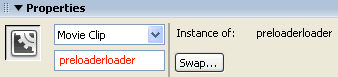 Movie Clips Instance Name in the Property Inspector.
// Set the bar starting width
bar.ba._width = 0;
// Stop the preloader from automatically running
stop();
// Get the total bytes to be loaded
total_bytes = (this._parent.MyImagesHolder.getBytesTotal());
// Get the bytes loaded so far
loaded_bytes = (this._parent.MyImagesHolder.getBytesLoaded());
// Work out the difference between the total bytes to load and the bytes loaded so far
remaining_bytes = (total_bytes-loaded_bytes);
// Work out the percentage loaded
percent_done = (int((loaded_bytes/total_bytes)*100));
// Set the target bar percentage loaded
bar.ba.target = (percent_done);
// Display progress of percentage loaded in the text box
DisplayProgress = (Math.round(bar.ba._width))+" % loaded.";
// Check to see if everything has loaded
if (bar.ba._width>99) {
// If everything has loaded move onto the next frame
gotoAndPlay(4);
// If everything hasn't loaded then run this code
} else {
// Hide the loaded content
_root.MyImagesHolder._visible = false;
/* If everything has not loaded return to frame 2 and try again. This creates a loop and then runs the code above again. Is how everything updates. The values from last time will have changed as more content will have loaded by now. */
gotoAndPlay(2);
// Close the if-else statement
}
// Tell the content than it can now play
_root.MyImagesHolder.play();
// Set the image size
_root.MyImagesHolder._width = _root.MyImageWidth;
_root.MyImagesHolder._height = _root.MyImageHeight;
// Show the loaded content
_root.MyImagesHolder._visible = true;// Re-set the bar starting width
bar.ba._width = 0;// Enable the previous and next buttons now the image has loaded
_root.ButtonNext.enabled = true;
_root.ButtonPrev.enabled = true;
// Stop on this frame
stop();
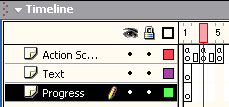
The Text layer
Step seven: Creating an Empty Movie Clip to Hold the Images
This is simply an empty Movie Clip on the Main Stage. The images load in this Movie Clip. The reason for doing this is because it is the only way to control the position of the images. With other methods of loading external images the pictures simply go in to the centre of the Stage. With this method if you move the blank Movie Clip to an alternative position the image sill consequently display in this location. The placement of the blank Movie Clip can be controlled in two ways:
- Placement on the stage when constructing the Flash Movie
- Once on stage the Movie Clip's position can be controlled through ActionScript.
In this case the location of the images is by the location on Stage of the blank Movie Clip not via the ActionScript.
- Go to: Insert > New Symbol (Ctrl F8)
- Give it the Name: MyImagesHolder
- For Behavior select: Movie Clip
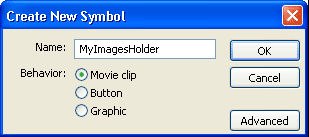
- Click: OK
- Return to the Main Stage by clicking on Scene 1 Tab:
- Select Frame 3 of the Layer: Movie Holder
- Open the Library: Window > Library (F11)
- Drag onto Stage the Movie Clip: MyImagesHolder
- In the Property Inspector set the Movie's Y value to: 10
- Set the Movie's X value to: 10
- In the Property Inspector give it an Instance Name: MyImagesHolder
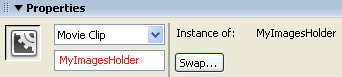 Movie Clips Instance Name in the Property Inspector.
Note: Because the Movie Clip is empty you will only see a small circle:

Step eight: Creating the Timer Movie Clip
This Movie Clip has a small amount of ActionScript that controls the loading of the first Image. Subsequently images are loaded when the user clicks on one of the buttons.
- Go to: Insert > New Symbol (Ctrl F8)
- Give it the Name: Timer
- For Behavior select: Movie Clip
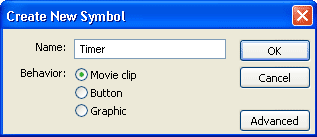
- Click: OK
- On Frame 1 of the Timeline add this code:
- The Timer Movie Clip is now complete. Return to the Main stage by clicking
the Scene 1 Tab:
// This is how we auto load the first image when the movie loads
// Auto load the first image from the Array
loadMovie(_root.MyArray[0], _root.MyImagesHolder);
// Tell the preloader to preload the first image
_root.preloaderloader.gotoAndPlay(2);
// Stop this Movie Clip now the first image has loaded
stop();
Step nine: Placing the Timer on the Main Stage
- On the Main Stage select Frame 3 on the: Timer Layer
- Open the Library: Window > Library (F11)
- Drag on to the Main Stage the: Timer Movie Clip
- Position it about in the: Centre
- In the Property Inspector give it an Instance Name: timer
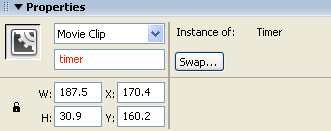 The Timer Instance Name.
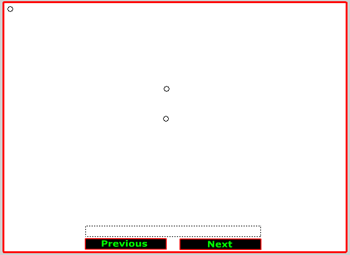 Your Main Stage should now look similar to this. (Click to enlarge)
Step ten: The ActionScript
It is the ActionScript on frame 1 of the Main Stage that controls the bulk of the information that needed to load and preload the images.
- Select Frame 3 of the ActionScript Layer and add the following code:
// Set up the variables
/* Set the total number of images to load minus one so this will load images counting from zero to ten (eleven images in total). */
var NumberOfImages = 10;
/* Set the location of the images e.g. the path to the image like c:myFolderMyImages or http://www.MyWebSite.com/Images */
var LocationToImages = "images/";
// Set the image format i.e. gif, jpg etc…
var FileType = ".jpg";
// Set the size of the images you want to load
var MyImageWidth = 530;
var MyImageHeight = 350;
// Declare 'x' as a variable and set it's value to 0
// This will count the images as they load
var x = 0;
// Hide the loaded content
_root.MyImagesHolder._visible = false;
// Declare two arrays
// First array is for the location of the images
var MyArray = new Array();
// Second array is for weather an image has already been loaded or not
var MyArray2 = new Array();;
// Declare 'i' as a variable and set its value to 0
var i = 0;
// While the variable 'i' is less than the number of images do the follow
while (i<=NumberOfImages) {
// Add the following together: 'file location' , 'file number' and 'file type'.
// Then add it to the array as one hole string. For example:
// MyArray[0] = images/0.jpg,
// MyArray[1] = images/1.jpg,
// MyArray[2] = images/2.jpg
// etc...
MyArray[i] = LocationToImages+i+FileType;
// Increase the value of 'i' by 1
i++;
}
// Code for Next button
// Call the code below if the next button is clicked
_global.Next = function() {// Disable the buttons until the image has loaded
_root.ButtonNext.enabled = false;
_root.ButtonPrev.enabled = false;
// Clear any message alerts
MessageDisplay = "";
// Set the variable 'x' as one greater than last time
x = x+1;
// So long as the variable 'x' isn't the same as the total number of images, then do the following:
if (x<=NumberOfImages) {
// Load the next image along from the last image loaded
loadMovie(MyArray[x], _root.MyImagesHolder);
// Check to see if the image has been loaded already or not but checking the second array current index value to see if it's been set to 1 or not
if(MyArray2[x] == 1){
// If the image has already been pre-loaded once then no need to preload it again, so instead just load the image and skip the preload stage
_root.preloaderloader.gotoAndPlay(4);// Otherwise if the image hasn't already been preloaded then do the following
} else {// Set the second array current index to the value of 1 so that next time the index is checked flash will know the image has already
// been pre-loaded once
MyArray2[x] = 1;// Tell the image preloader to play and preload the external images
_root.preloaderloader.gotoAndPlay(2);
}
// Otherwise...
} else {
/* Set the variable 'x' back to the variable 'NumberOfImages'. This resets the variable 'x value so that when the user reaches the end of the available images. The variable 'x' will not change in value and therefore will not try to load any more images from the array. */
x = NumberOfImages;// Only enable the previous button
_root.ButtonPrev.enabled = true;
/* If the variable 'x' is the same as the variable 'NumberOfImages' then don't load the next image (as there aren't any more). Instead alert the user they have reached the end of available images. */
MessageDisplay = "No more images available";
}
};
// Code for Previous button
// Call the code below if the previous button is clicked
_global.Previous = function() {//Disable the buttons until the image has loaded
_root.ButtonNext.enabled = false;
_root.ButtonPrev.enabled = false;
// Clear any message alerts
MessageDisplay = "";
// Set the variable 'x' as one less than last time
x = x-1;
// So long as the variable 'x' isn't equal to or less than zero then do the following:
if (x>=0) {
// Load the previous image along from the last image loaded
loadMovie(MyArray[x], _root.MyImagesHolder);
// Tell the image preloadr to play and preload the exsternal image
// As the previous image will have already been preloaded once we don't need to preload it again
// so instead skip the preloader stage and just load the image
_root.preloaderloader.gotoAndPlay(4);
// Otherwise..
} else {
/* Set the variable 'x' back to zero. This resets the variable 'x value so that when the user reaches the start of the available images. The variable 'x' will not change in value and therefore will not try to load any more images from the array. */
x = 0;// Only enable the next button
_root.ButtonNext.enabled = true;
/* If the variable 'x' is the same as or less then zero then don't load the previous image (as there aren't any more). Instead alert the user they have reached the end of available images. */
MessageDisplay = "No more images available";
}
};
// Disable the next and previous buttons till the first image automatically loads
_root.ButtonNext.enabled = false;
_root.ButtonPrev.enabled = false;
// Stop the movie on this frame
stop();
Step eleven: Testing your Movie
Time to test your Movie: To do this you need to prepare your Jpegs (or other types of images).
- You will need to create a sub folder called images and
place your pictures in that before you test your Movie: Control > Test
Movie (Ctrl
+ Enter)
Note: If you used a different folder name to that used in the code above do not use the name images but use your own folder name.
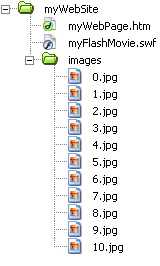 The Folder structure.
- All the Jpegs are in a folder called: images
- Eleven images numbered: 0 to 10 (not 1 to 11).
- The Flash Movie (or swf file) is not in the images folder but: One level up
That's it !!
