- Create a new file about 200px on 200px.
- Create a big round circle in the middle using the selection tool (Hint: Hold Ctrl+Alt while creating the circle to create a perfect circle.)
- Fill it with black. Select black as your foreground color and the press
Shift+F5 and Ok.
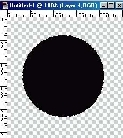
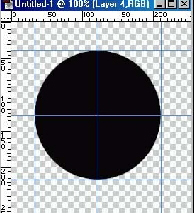
- Add rulers (Ctrl+R) if you don't have them already. And go to Window>Snap and make syre it's checked.
- Drag guide lines so your image looks like this:
- Next, using the pen tool create anchor points in the center of each guide
except the ones inside the circle like so:
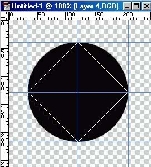
- Now hold the Alt key with the pen tool selected and pull down from the left anchor point to form a half circle, do so until it snaps to the circle you drew. Do the same with the right anchor just pull up. Now you have a circular path around the black circle.
- Create a new layer.
- Now Create a new brush by clicking the little black arrow on the right
of the brush selection window.
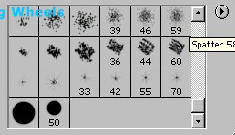
- Use these settings:
Diameter: 35
Hardness: 100%
Spacing: 200%
Angle: 0
Roudness: 100% - Select the path tool and go to the circular path you created before, right click and select: Stroke Path... and choose Paintbrush as the tool.
- Next right click on the path again just time select Hide...
- Click on your first layer. Next Ctrl+Click on your second layer, this will select the round circles you just created. Press delete and hide the second layer by click on the eye left of the layer.
- Select the marquee tool and go to the center of your circle, hold down
Ctrl+Alt and draw a small circle, next press delete and
Ctrl+D to deselect.
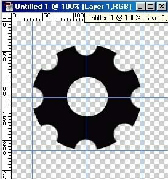
- Ctrl+Click on your first layer select a gradient from black to white and start it at the top left and drag it to the bottom right. Ctrl+D to deselect.
- Go to Layers>Layer Effects(Style in ver 6.0)>Bevel And Emboss. Use the default settings.
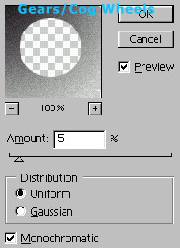
- Noise>Add Noise... and use the settings in the image.
- Resize the image to the size of your choice and walla!

Her
Gears Cog Wheels
Added:Sep 26, 2005 Rating:


 Level: Beginner Software:
Photoshop
Level: Beginner Software:
Photoshop
Level: Beginner Software:
Photoshop
