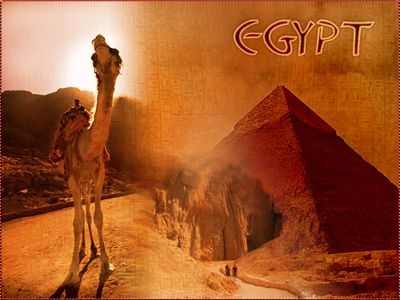
This is a simple effect that creates a sand storm with a Hieroglyphs pattern. Useful for designs related to ancient Egypt.
1) First make a new Adobe Photoshop project, open Photoshop and go to File-->New. Chose any size you like, I chose 500 by 375.
2) Press "d" to default the color palette. You should have white as the background and black as the foreground.
3) Now go to Filter-->Render-->Clouds
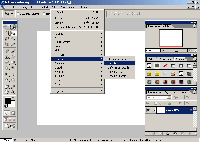
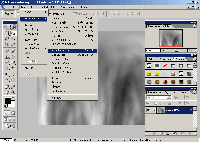
4) Now go to Filter-->Distort-->Polar Coordinates, click on the radio button "Polar to Rectangular.
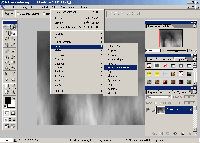
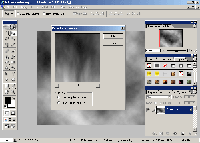
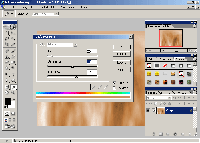
5) Go to Image-->Adjustments-->Hue/Saturation, make sure that the "Colorize" is
checked and chose the following options:
Hue: 29
Saturation: 50
Lightness: +16
6) For this step we need an image of Hieroglyphs, I used this one:
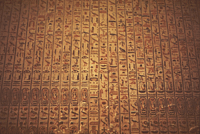
Just open this image in Photoshop, select all or press Ctrl + A. The go to Edit-->Define Pattern, just give it a name if you wish and click OK. You can close this image now.
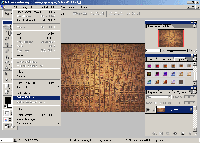
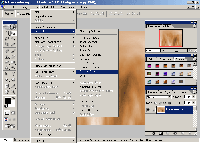
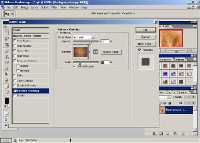
7) Go back to your design; now go to Layer-->Layer Style-->Pattern Overlay.
Set the following:
Blend Mode: Soft Light
Opacity: 70%
Pattern: Chose the hieroglyphs image
Scale: 50%
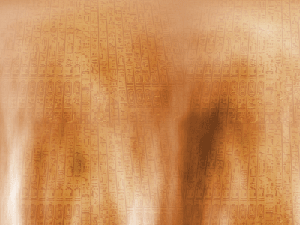
Voila you are officially done! Now just add in some pictures and text to get an ancient Egyptian design!