This tutorial will give you a few useful pointers on how to give your text a nice 3d look. It's very simple to do yet very professional technique
Step: 1
Open a new document, type the text you need and restarize it. The color or Font does not matter

Step: 2
Now press [Ctrl]+[T], right click on the text and select "Perspective"
Step: 3
Now select the lower right corner and drag it to right
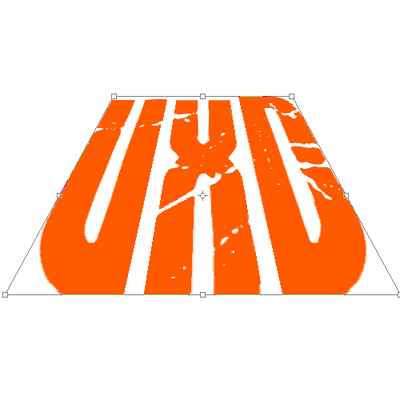
Step: 4
Press enter and go to Blending Options > Stroke
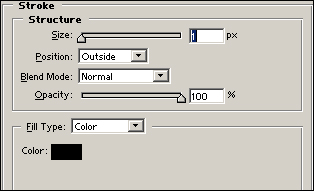
Step: 5
Now Press and hold [Ctrl]+[Alt] and up till it looks good
Step: 6
Here is what I got. If done correctly you should something like