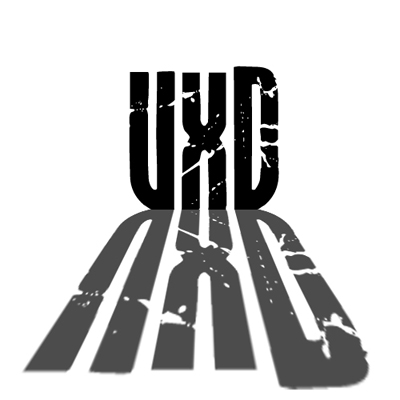
This tutorial will teach you how to give your text a bit more 3d look
Step: 1
First open a new document 500x500 fill the background white and put some text on it
Step: 2
Then duplicate the text layer, right click on the new layer and select rasterize
Step: 3
Now press [ctrl]+T , right click on the part that is being rasterized and select flip vertical
Step: 4
Drag the rasterized layer up till it looks like its being reflected from the original text
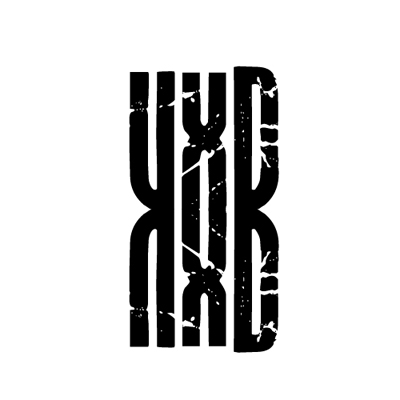
Step: 5
Now press [ctrl]+t and stretch it down like this
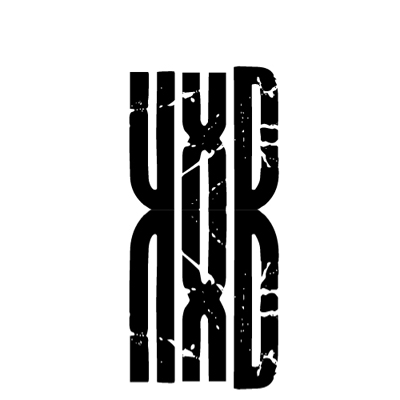
Step: 6
Do not press enter yet now right click on it again and select perspective
Step: 7
Now select the lower right angle and drag it to right till the text almost touches the sides
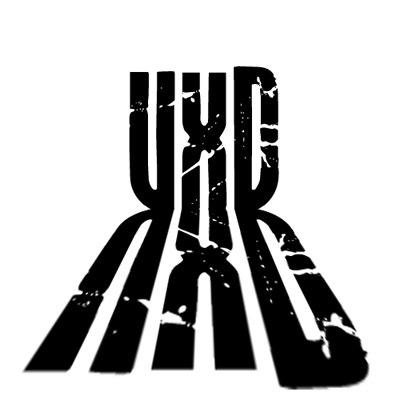
Step: 8
Now all you have to do is change the master opacity of the shadow layer to 80% and you're done