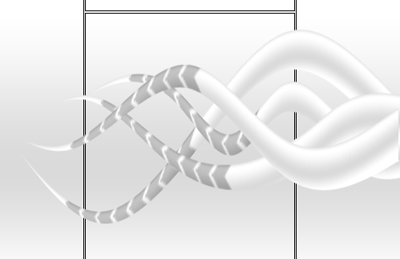
This tutorial will teach you how to make great looking tentacles
Step: 1
First open a new document size: 500x500
Step: 2
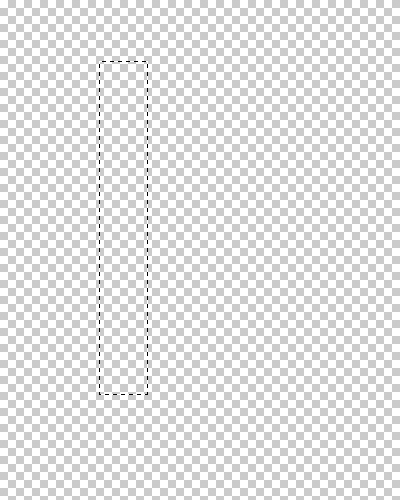
Select the Rectangular Marquee Tool
Step: 3
Make a shape similar to mine, fill it with any color
Step: 4
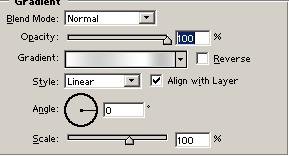
Go to gradient overlay
Step: 5
Use these options
Step: 6
Now you have to add some perspective and skew it. Edit>Transform>Perspective
Step: 7
Now, Edit>Transform>Skew. Drag bottom-right corner to center (left). Do it with SHIFT+ ALT (important), now just right click it and take "Flip Vertical"
Step: 8
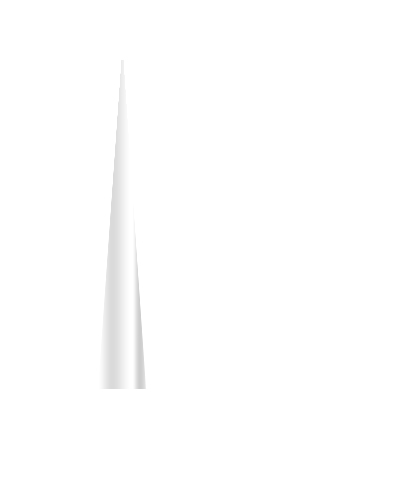
Then create a new layer under the tentacle and merge the tentacle layer down
Step: 9
Now you should have something like this
Step: 10
Add some stripes: use Polygon Tool Lasso [L] and make selection like mine. Don't deselect it. Use Brightness & Contrast to make it grey. Enter Brightness -30. You can add more complex shapes like lines
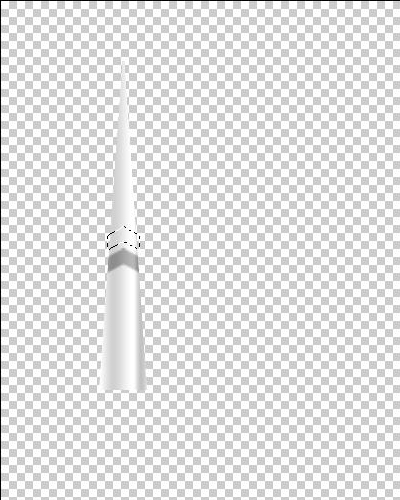
Step: 11
After this Press Ctrl+ U and stretch your tentacle a bit to the top
Step: 12
Now Create a new layer under the Tentacle and fill it with write, now go to gradient overlay and use these settings
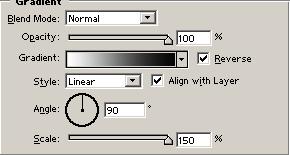
Step: 13
Now add a Shear filter to the tentacle layer . Filter>Distort>Shear. You can make your own or use my settings
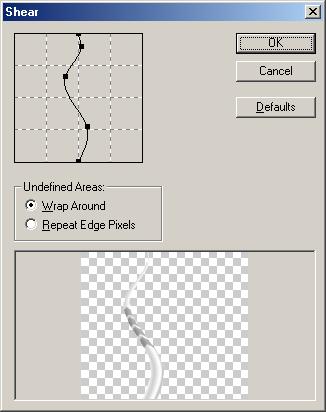
Step: 14
And you're done. Just play around with the settings to get different effects
Step: 15
Here is what I have made