


Here is a simple effect that creates a border using gradients. All you need is to set the foreground color to have a light color and the background color to have a dark color or vice-versa.
For this tutorial, I have white as my foreground color and black as my background color.

Figure 01
1. First you will need a pattern to create the selection. I used a rectangular pattern with rounded corners as my pattern for this tutorial.

Figure 02
2. Select the object then apply a gradient starting from upper right to the lower left (fig. 2).
Gradient: foreground to background
Type : Linear
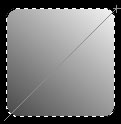
Figure 03
3. Contract the selection (go to SELECT > MODIFY > CONTRACT) by 4 pixels then apply a gradient again but this time start from the lower left to the upper right.
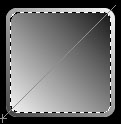
Figure 04
4. Contract the selection (go to SELECT > MODIFY > CONTRACT) again by 4 pixels then hit the delete key to erase then inside section.
Figure 05
