Before we start editing, let's try to manage image files. First of all, open a few images to your choice using the following ways.
1. Pull down menu File > Open...
2. Shortcut [Ctrl + O]
3. Double-click in empty area
4. In the Options bar, click the
 button to launch the Bridge (built-in image browser)*, find an image on your computer
and double-click its thumbnail to load it.
button to launch the Bridge (built-in image browser)*, find an image on your computer
and double-click its thumbnail to load it.
*In Photoshop 8 and earlier versions, pull down Window > File Browser.
5. Pull down menu File > Open Recent > select image from the list of recently opened images.
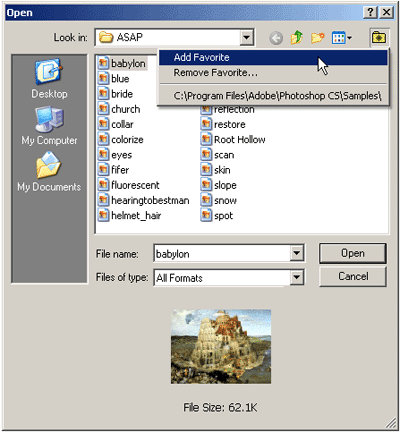
Methods # 1, 2 and 3 above call the dialog box Open which is pretty much
a standard system filebox except for a preview area at the bottom. Another good feature is the "Favorites"
 button in the upper right corner. Do add to your favorites the ASAP folder (screenshot); chances that
you will use it often.
button in the upper right corner. Do add to your favorites the ASAP folder (screenshot); chances that
you will use it often.
NB Opening camera raw files in Photoshop CS automatically launches the Camera Raw plugin.
 Since 1999, Andrei has run the digiCollage – an online image editor's shop. Having edited all kinds of customers' images, he has vast Photoshop experience that he willingly shares with you in this course. You are invited to look over an expert's shoulder and see Photoshop in action.
