This tutorial shows you how to create realistic 3D fruit bowl illustration with one of the Adobe Illustrator CS2 new features: 3D Revolve Effect.
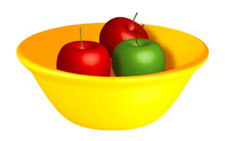
1. Create the bowl
Create a path and fill it with yellow color like the image below. Then, select Effect > 3D > Revolve from the menu.
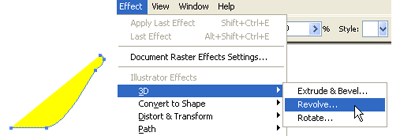
2. Apply 3D Revolve Setting
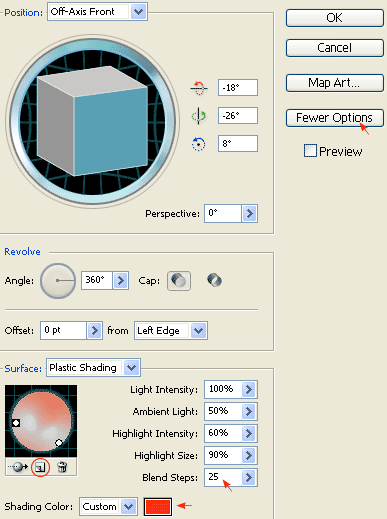
When the 3D Revolve Options window popups, apply the following setting:
- Click on the More Options if the lower portion window is not showing
- Create a new light by clicking on the New Light icon and drag those two lights as shown
- Change Shading Color to orange by: select Custom from the drop drop, click on the sample color box, Color Picker window will pop, then enter this color value (R=255 B=50 G=0)
- If you want a smooth blending, increse the Blend Steps (default is 25, max is 256). Note: increase Blend Steps will also increase file size and memory usage.
3. Create the apple
Create an oval path with the Ellipse Tool  and
fill it with green color. Then select that green path and apply Effect > 3D > Revolve,
leave all options in the 3D Revolve Options window as default and click OK. Now, you
should get something like the image shown below:
and
fill it with green color. Then select that green path and apply Effect > 3D > Revolve,
leave all options in the 3D Revolve Options window as default and click OK. Now, you
should get something like the image shown below:

4. Add Drop Shadow
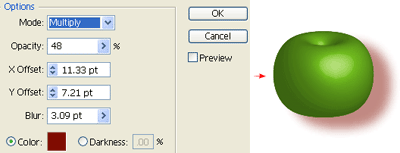
Keep the apple path selected, go to Effect > Stylize > Drop Shadow and apply the setting as shown below.