


Step 1: First write a simple text.
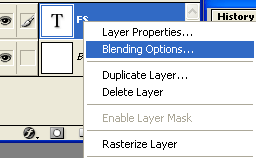
Step 2: Then Push in Keyboard (F7) Then Right Click On The Text
In These Options:
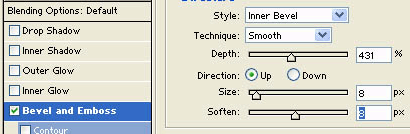
Step 3: Select Bevel Emboss with these Options :
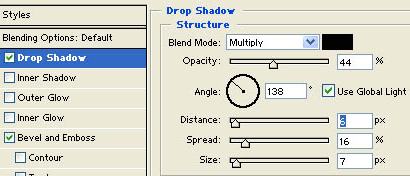
Step 4: Select Dro Shadow with these options:
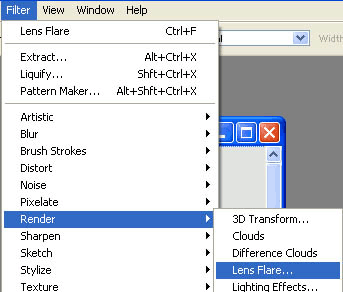
Step 5: Then Go to Render/Lens Flare in these options:
Step 6: Now See These options:
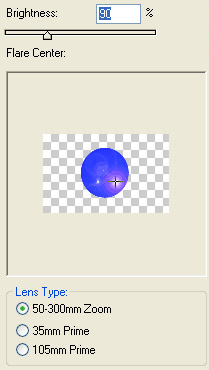
Step 7: Then it look like this:

Your Button Effect is Finished
