

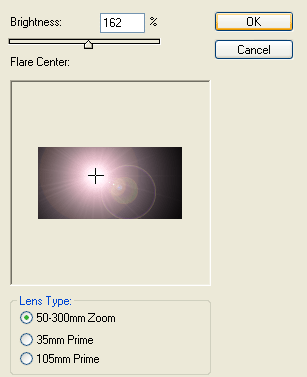
Step 1: First of all make a new document. Select Filter > Render > Lens Flare and set these options:
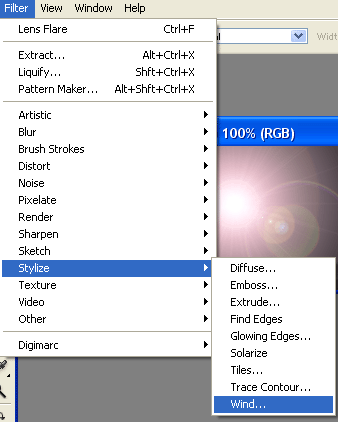
Step 2: Now select Filter > Stylize > Wind:
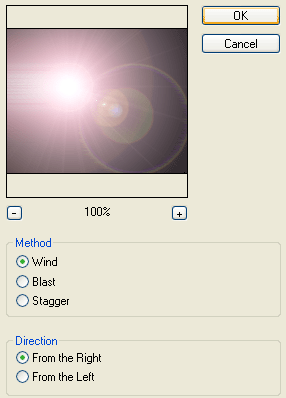
Step 3: Set these options, click OK and repeat this action (Ctrl + F ):
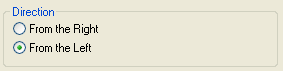
Step 4: Choose From the Left direction:
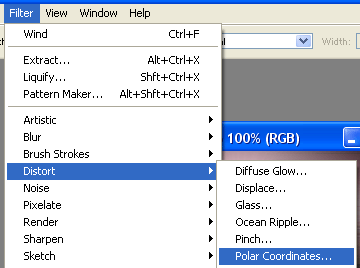
Step 5: Select Filter > Distort > Polar Coordinates:
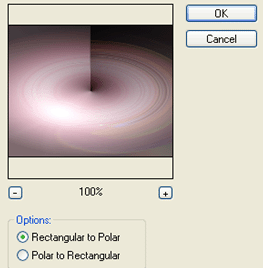
Step 6: Set these options:
Step 7: Write your text and it should look like this:

Your logo is finished.
