


Step 1: First write a simple text:

Step 2: Then click on Filter/Texture/Mosaic in these option:
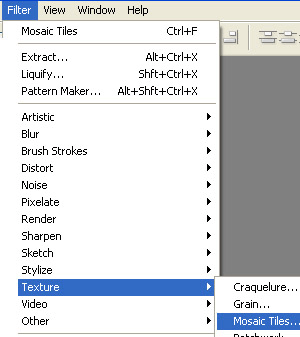
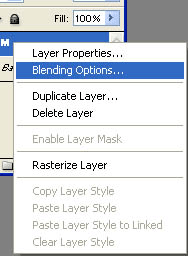
Step 3: Then push in keyboard (F7) and right click on the text and select blending option:
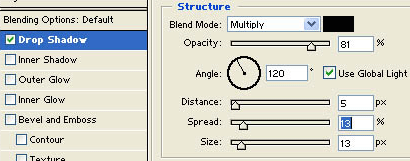
Step 4: Now select Drop Shadow:
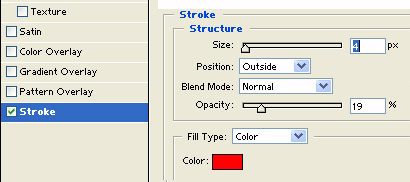
Step 5 : Then Now select Stroke:
Step 6 : Now Click On Filter/Liquify in these Options:
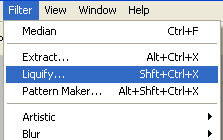
Step 7: then see these Options then Straight the side of the text on the brush look like this:
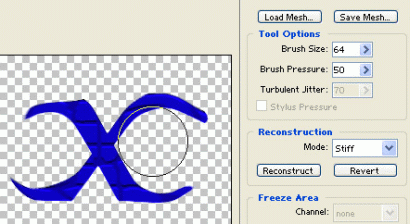
Step 8: Then it look like this one:

Your Text is Finished
