 |
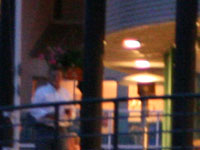
1. Open an image to edit. | |
| |
||
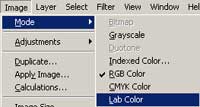 |
2. Change the blending mode to Lab Color (Image> Mode> Lab Color). | |
| |
||
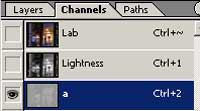 |
3. In the Channels pallet (Window> Channels), select the chroma a channel (Ctrl+2). | |
| |
||
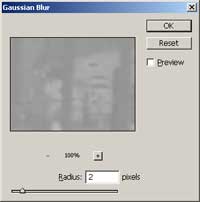 |
4. Use the Gaussian Blur tool (Filter> Blur Gaussian Blur) and use the a radius that will remove most of the noise. | |
| |
||
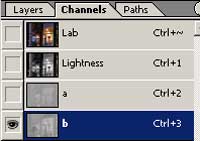 |
5. Select the chroma b channel (Ctrl+3) and apply the previous filter again (Ctrl+F). | |
| |
||
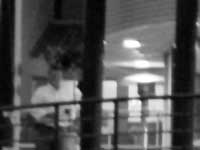 |
6. Select the Lightness channel (Ctrl+1)
and use the Reduce Noise tool (Filter> Noise> Reduce Noise) tool to reduce the noise. If you are using Photoshop CS or under, use the Despeckle filter (Filter> Noise> Despeckle) to reduce the noise. If required, apply the Despeckle filter again (Ctrl+F). |
|
| |
||
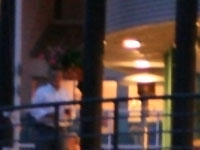 |
7. Change the image mode back to RGB (Image> Mode> RGB). | |
| |
||
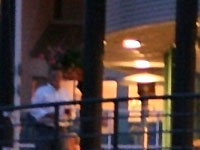 |
8. Use the Unsharp Mask tool (Filter> Sharpen> Unsharp Mask) to sharpen the image. Rollover the image to see the original image without this Photoshop effect applied. | |
Her
Reducing Noise
Added:Nov 18, 2005 Rating:

 Level: Beginner Software:
Photoshop
Level: Beginner Software:
Photoshop
Level: Beginner Software:
Photoshop
