

If you are new to scripting for Photoshop, please view our Photoshop Scripting Basics tutorial for an introduction to Photoshop scripting and a few exercises about basic JavaScript.
The first step in a script for Photoshop is to set what units you want to use in your code. There are two types of units to define, the Rulers and Type. The ruler unit specifies the image dimension and the type unit specifies the text size.
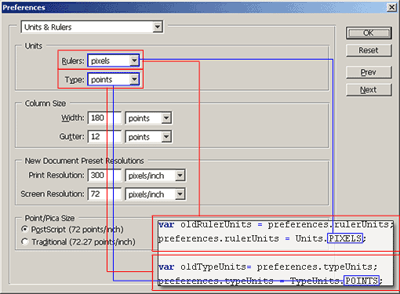
1. Before we change the ruler and type
units, we need to remember the current settings so that we can change the units back to its original
state after the script is done executing. To do this, we simply create a variable that will get
the current ruler and type units.
|
||
| |
||
2. Now that we have the old preferences
saved, we can change the units. Type in the following lines in bold:
There are 7 different units you can use for rulerUnits (pixels, inches, cm, mm, points, picas, percent) and 3 units we can use for typeUnits (pixels, points, mm). Type in the unit you would like to use next to the rulerUnits and typeUnits.
|
||
| |
||
3. After we've defined the ruler
and type units, we can now type our own script below. I'll type a basic alert script to test
the function.:
Run the script inside Photoshop to test if it's working. 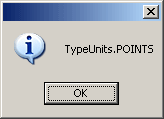 |
||
| |
||
4. Finally, you need to change your
preferences back. This usually goes at the end of every script so that the users preferences get
reset back to the way it was before the script was ran. To reset the Units preferences, simply
change the ruler and type units back to the values you've defined in the first line of variables.
|
||
| |
||
5. Now when you go back to your preferences
to check your ruler and type unit settings, it should be the same as it was before the script was
ran.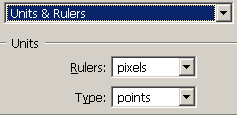 |
||
