


If you are new to scripting for Photoshop, please view our Photoshop Scripting Basics tutorial for an introduction to Photoshop scripting and a few exercises about basic JavaScript.
1. Check for an opened document so that this script
will only run if there is an opened document.
|
|
| |
|
2. Type in the properties you would like to use. View
the Properties for artLayer table below for a list of properties.
|
|
| |
|
3. Now we have to tell which layer the properties will
be applied to.
|
|
| |
|
4. We can optimize the code by creating a variable
for activeDocument.activeLayer.
|
|
| |
|
5. Save the file and run the script inside Photoshop
(File> Scripts> Browse). Make sure that you have a document opened or else the script will
do nothing. 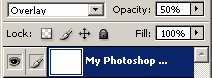 |
|
Properties for artLayer
|
Property
|
Type
|
Description
|
|---|---|---|
allLocked
|
Boolean
|
Locks or unlocks a layer.  Code used in example: allLocked = true
|
blendMode
|
BlendMode constant
|
Sets the blend mode for the layer.  Code used in example: blendMode = BlendMode.NORMAL
|
fillOpacity |
Number | Changes the opacity of the filled areas in the layer.  Code used in example: fillOpacity = 100% |
grouped |
Boolean | Groups the layer with the layer below it. Code used in example: grouped = true |
isBackgroundLayer |
Boolean | Sets the layer as the background layer. Will only work if there are no Background layer.  Code used in example: isBackgroundLayer = true |
kind |
LayerKind constant |
Sets the type of layer to either NORMAL or TEXT. Changing a layer to
a TEXT layer will only work if the layer is empty/transparent.  Code used in example: kind = LayerKind.TEXT |
linkedLayers |
Array | Set the layers that are linked with the layer. |
name |
String | The name of the layer.  Code used in example: name = "Layer 3" |
opacity |
Number | Opacity of the layer.  Code used in example: opacity = 100 |
parent |
Document or layerSet object |
The parent object that contains this layer. |
pixelsLocked |
Boolean | Locks or unlocks the pixels of a layer.  Code used in example: pixelsLocked = true |
positionLocked |
Boolean | Locks or unlocks the position of a layer.  Code used in example: positionLocked = true |
textItem |
TextItem object |
The text used in the layer. For text layers only.  Code used in example: textItem.size = 10; |
transparentPixelsLocked |
Boolean | Locks or unlocks the transparent areas. Code used in example: transparentPixelsLocked = true |
visible |
Boolean | Sets the layer's visiblity.  Code used in example: visible = true |
