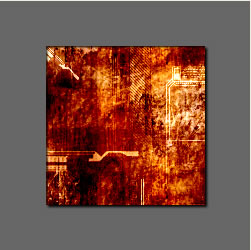
So the result will look if we are ready.
Providing an arbitrary photo with a grunge effect.
At the end of the tutorial you can the used style download.

We make once the style first this one lies over the photo for the Textur later.
The canvas has a size of 250 x 250 px.
A rectangle makes in arbitrary size.
Not cares about color.
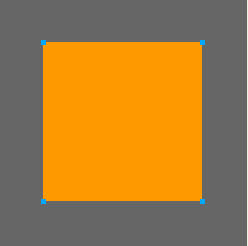
Give the rectangle the pattern wood 2.
It then should look like in the picture on the right.
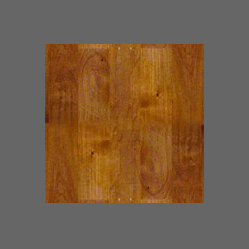
Give the rectangle a Textur with 100%.
I recommend one grunge Textur. However, it works also with the Textur pergament.
If you shouldn't have any similar Textur, then you can download a corresponding one in the area 'styles' at my side.
It then should look like in the picture on the right.
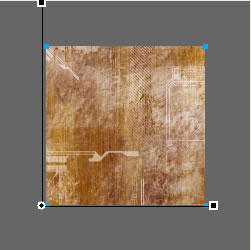
Marks the rectangle.
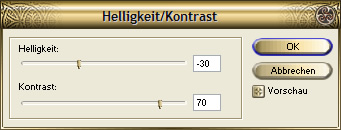
Give him the effect - match color - brightness/contrast.
Attitudes like in the picture on the right.
It then should look like in the picture on the right.
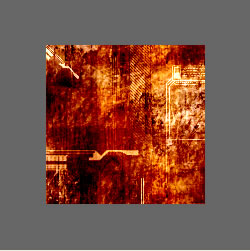
Marks the rectangle and give him the following effect:
Drop Shadow with the attitudes to be seen on the right
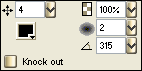
Then following effect:
Inner Shadow with the attitudes to be seen on the right
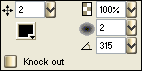
Mark the rectangle and it save it as a style.
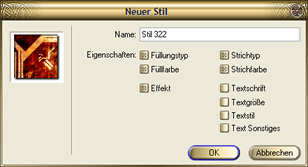
It then should look like in the picture on the right.