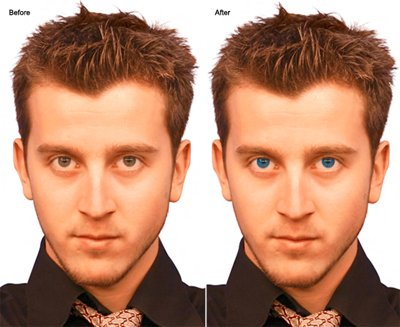
Recolor eyes with ease using the Color Replacement Tool in Photoshop CS/CS2.
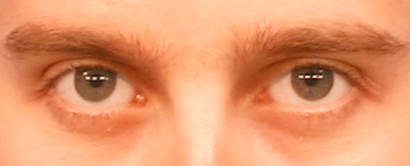
Below is the sample image.
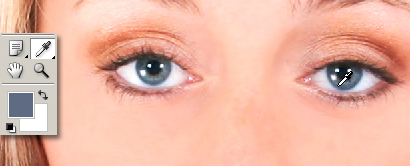
One option to start with is to sample from another image that has a different eye color you would like
to mimic.
With the target sample open, activate the 'Eyedropper Tool (I)' and click once in the blue eye area
to sample from. Note: That new sample now becomes the foreground swatch.
Switch back to your original target image. (Duplicate original image layer before proceeding)
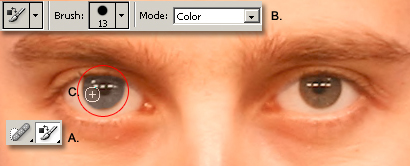
A. Activate the 'Color Replacement Tool (B)'.
B. Then up on the Options Bar, select a brush preset and ensure your 'mode' is set to 'Color', as captured
below.
C. Then brush over the old eye with the new foreground swatch color.
Not intense enough for you!
Undo the last step.
Double click the Foreground Swatch color and pick a new one from the Color Picker Palette.
Then repeat the above A, B and C process.

Here is the final before and after shot.