

If you're familiar with Photoshop or Fireworks, then you have probably worked with layer blend modes and filters. In fact, you've probably been wondering why these features weren't available in Flash. Well, the wait is over. In this tutorial you'll learn how to apply blending modes and filters to Movie clip symbols for some interesting effects.
Step 1
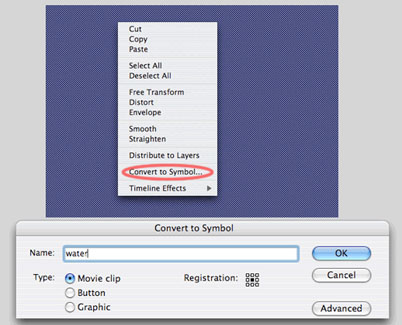
Launch Flash and create a new document. Rename Layer 1 "water". In the Tools panel, select the Rectangle tool and choose a Fill color. Draw a rectangle that covers the Stage. Right-mouse click on the fill and choose Convert to Symbol from the context menu. In the Convert to Symbol dialog window enter "water" in the Name field and choose Movie clip for the behavior.
Note: Filters and blends can only be applied to movie clip symbols.
Step 2
In this Step you'll need either a PNG or Photoshop file containing a transparent background. The angelfish used in the example was created in Poser and exported as a PNG file after rendering.
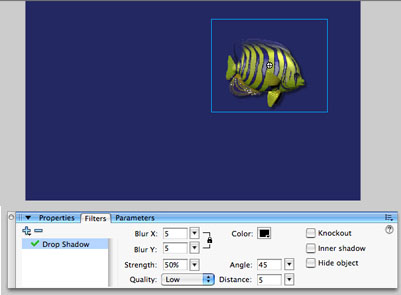
Insert a new layer and rename it "fish". Choose File > Import > Import to Stage. Locate and choose the image you want to use and click the Import button. Next, convert the image to a movie clip symbol. Name the symbol "fish".
Step 3
The job of PSD2FLA is pretty straightforward, so not many options are needed.
Turning off the "Export Hidden Layers" option allows you to export only those layers which have their visibility on. This can be very useful because you often have work layers that you want to keep around in the document but which shouldn't be moved to Flash. Just hide them before invoking PSD2FLA.
The "Open In Flash After Export" option will cause PSD2FLA to automatically open the resulting FLA file in Flash after creating it.
Step 4
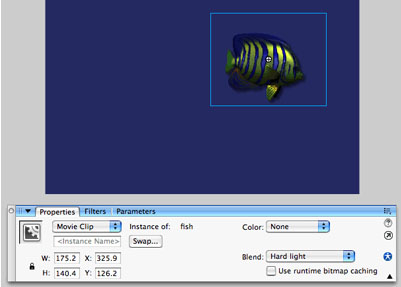
With the fish still selected, click the Properties tab in the Properties panel. Select Hard Light from the Bend menu located in the right-hand corner of the panel.
Note: Blending modes are a collection of prebuilt formulas that control how pixels in an object will interact with the object beneath it. Unlike Photoshop, where blends are applied to the layer, Flash 8 blends are applied to the object. This means you can have multiple objects on the same layer stacked on top of each other and apply a blend to each object.
Step 5
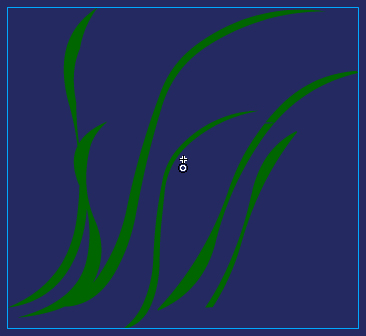
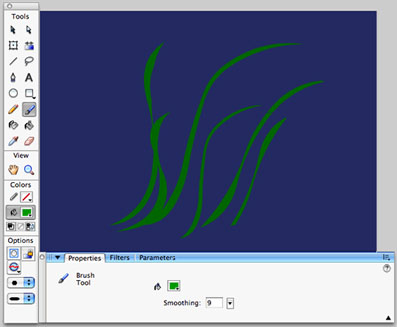
Insert a new layer and rename it "grass". Select the Paintbrush tool. Choose a green for the Fill color. In the Options section of the Tools panel, choose a small brush from the Brush Size menu. You may also want to choose a different brush shape from the Brush Shape menu located beneath the Brush Size menu. In the Properties panel click the Properties tab if it isn't already selected. In the Smoothing field enter 9.
Paint several grass blades on the Stage.
Step 6
Use the Selection tool to select all of the blades. Convert the selection to a movie clip symbol. Name the symbol "grass".
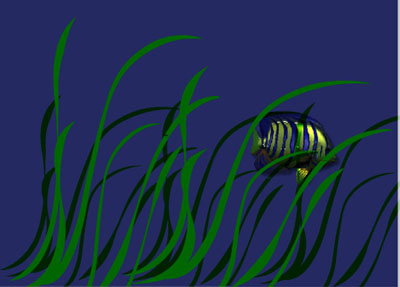
Select the grass on the Stage and press Command D (Mac) or Control D (Windows) three times to duplicate the symbol. Switch to the Selection tool by pressing V. Rearrange the grass instances on the Stage.
Select the Free Transform tool from the Tools panel. Use the Transform tool to modify the instances dimensions to add variety to the field of grass. Also, choose Overlay for each instances Blend.
Step 7
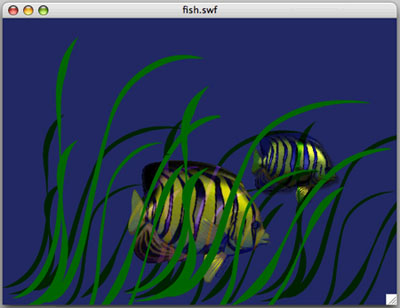
Insert a new layer and name it "fish". Open the Library, by choosing Command L (Mac) or Control D (Windows). Drag an instance of the fish symbol from the Library onto the Stage. Select Difference from the Blend menu.
Step 8
Insert a new layer and name it grass. Drag an instance of the grass symbol from the Library onto the Stage. Duplicate the instance several times and change each instances dimension. Choose Control > Test Movie to see the final results.
This tutorial introduced the new Blend and Filters features in Flash 8. Try changing the order of the layers, using different blends and animating the fish to create fascinating underwater world.
Courtesy of Layers magazine.
