
 Download Source File
Learn how to create stylish vector/line flower with Illustrator Blend Tool. This Adobe Illustrator tutorial is great for creating background and large print illustration.
1. Flower petal
Create two stroke paths: one yellow and one blue.

2. Blend Options
Go to Object > Blend > Blend Options and set it to Specified Steps = 10. Specified Steps basically tells how many step to blend from 1 object to another.
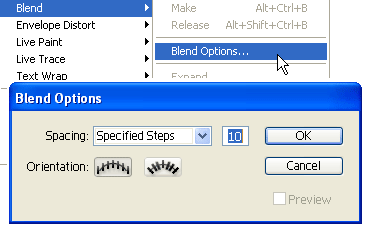
Blend
Now select the 2 petal paths, go to Object > Blend > Make or press Ctrl + Alt + B and you should get something looks like the image shown below.

3. Duplicate more petals
Duplicate more petals to form the flower by Copy & Paste or Alt + Drag.

4. Stem
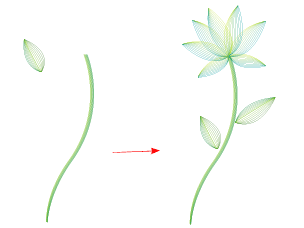
Create a stem by using the same Blend technique as in the previous step. Here I set the Specified Steps = 8.

5. Leaf
The leaf is formed by 2 parts, top and bottom. I use Specified Steps = 5 here.

6. Put them together
Now put them together to create a beautiful flower.
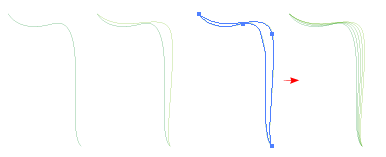
7. Right long leaf
Create a long leaf with Blend step = 3.

8. Left long leaf
Repeat the previous step to create the left long leaf.
Final
Your final image should looks like the image shown below:
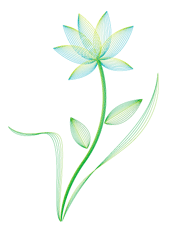
More...
Play around with the stroke color, stroke weight, Blend step, Transparency and you might get unexpected nice result. Here is a sample I did in Photoshop, with different Blend Mode, Multiply and Darken. This image style is good for creating website header, banner, wallpaper, background, large print, etc.