So let me guess. You don't know what pixel strech is? It's a simple technique that most graphic desiners use. Simply, it's just sretchening pixels.
Let's get started
Step 1. Find your image in which you will strech the pixels. In this tutorial i will use an image in which I made previously. Here we go.
My image:

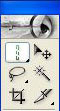
Step 2. Select your single row or column marguee:
Now click anywhere on your render and a dotted line should appear. Go to edit -> copy and then go to copy -> Paste. A new layer should come up. Click on that layer.
Step 3. Now go to edit -> transform -> Scale. Drag the pixels to the ends, It maight look wierd at the moment.
Step 4. Make you put your pixels strech below your render. Alsou put your pixels strech layer as overlay. in this tutorial I put some effects to my render. I duplicated it, set it ti overlay as I put motion blur to a 5 degree with 5 pixels blur. I also did filter -> stylize -> wind from the left three times and from the right three times. I got this:

Step 5. Ffinish your sig with simple brushing.
In this step I simply used grunde brushes to finish my sig. It gave it a nace look while it made it deeper. Feel free to also use color balance layers and contrast layers to bring out the contrast in your sig. I used about 5 - 8 layers of just brushes, alternating between black and white. All the layers were set to overlay. I used jashin's set of brushes, which can be found on deviatart.com or gust google. You can add a neat border by creating a new layer, select all (Ctrl+A), go to edit -> stroke and put 1 pixels of black. Then create a new layer on top of that and set it to overlay. Select all again and create a 3 pixels white stroke, and you got yourself a nice fancy border.
Here is my result with my near text.

Other results done with pixel strech.