If you already know how to stroke lines drawn with the freedom pen tool with a brush strokes you will probably want to skip this tut as you will find it boring and a waste of your time.
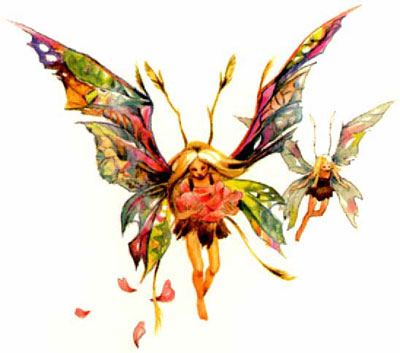
I took this render just to demonstrate this technique.
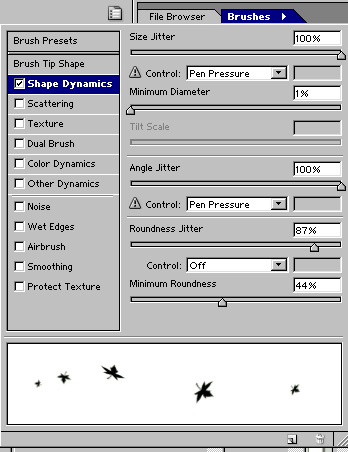
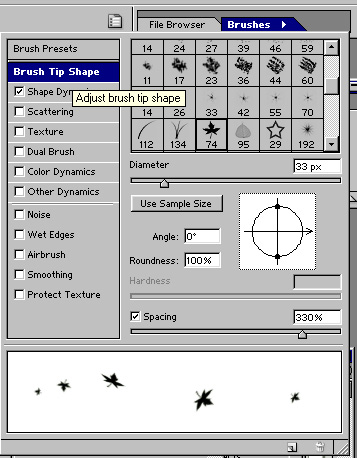
Lets set up the brush we want to use first. Select the scattered maple leave brush, click on the brush tab and apply these settings.
Now select the freedom pen tool and draw some lines like so.
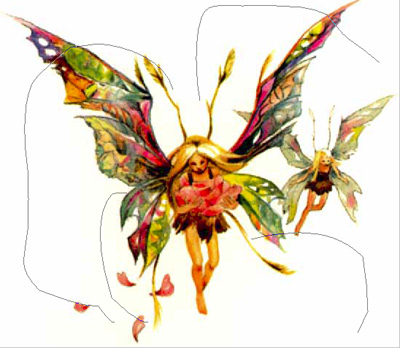
Now with the freedom pen still selected right click on one of the lines and pick Stroke path-Brush and hit ok and delete the path layer.. now you have something like this.
Now for the last step just apply a colorful pattern that you might have or colorful gradient and it should look something like this.
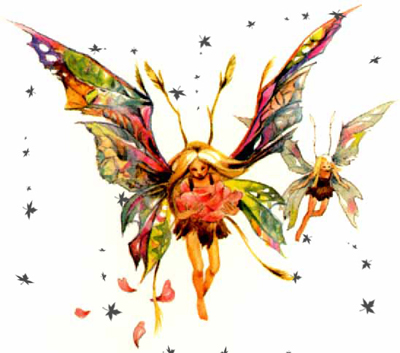
If you want to add a few more leaves just make a new layer... add the same pattern to it and then just add a few brush strokes here and there or do it on the same layer. This technique is a good way to add fairy dust as well.. just pick a different brush and add a layer style glow to it.