Start with a 400x150 canvas with a black background.
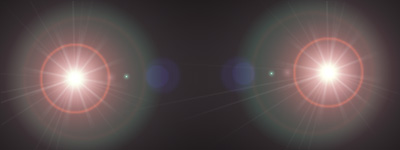
1. Put a lens flare on either side of the thingy
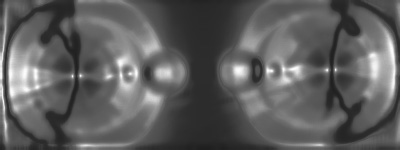
2. Filter > Sketch > Chrome with Detail 7 and Smoothness 1
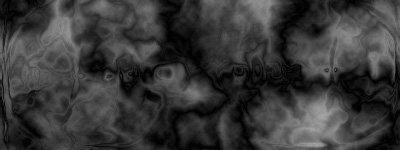
3. Filter > Render > Difference Clouds and Ctrl+F until you get something like this:
4. Ctrl+B with settings:
Midtones: Cyan 88, yellow -31
Shadows: Red 56, yellow -62
Highlights: Yellow -76
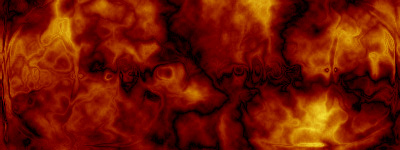
5. Make a new layer filled with #00FF00 (green), and set it to Multiply, with 60% opacity.
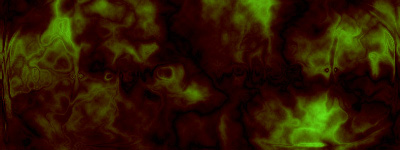
6. Filter > Texture > Patchwork with settings Square size 8 Relief 4
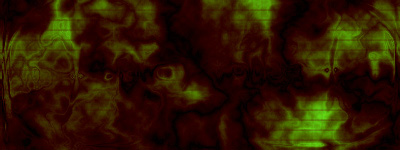
7. Make a new layer with default colour still green. Filter > Render > Clouds and set the layer to Soft Light
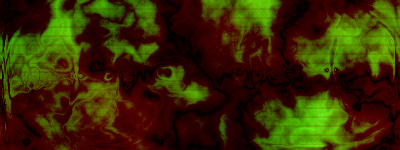
8. Use the gradient tool (Difference; Black, White; with Dither checked) and go right to left (or left to right, if you prefer) and then Filter > Blur > Gaussian blur with Radial Pixel 3.0
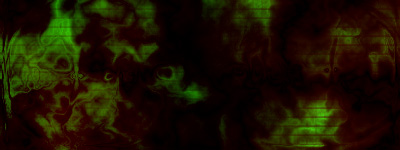
Your final result should look like this: