


First open up an new canvas 400x100px (or 400x200px).
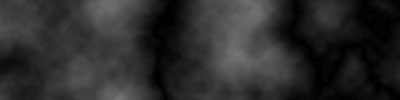
- Add Clouds by doing Filter - Render - Clouds.
- And then add Difference Cloud by Filter - Render - Difference Clouds
[Size=1].
It should be looking like this:
- Duplicate your layer ( Ctrl+ J )
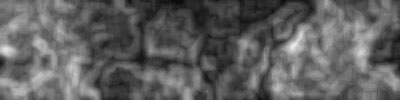
- Brush your Edges ( Filter - Brush Strokes - Accented Edges )
Setting :
Edge Width : 8
Edge Brightness : 44
Smoothness : 4
You should have something like this:
Go to Layer 2
We are going to make Layer 2 a bit brighter by adding a Lens Flare
( Filter - Render - Lens Flare )
The setting are : Brightness : 110 and the Lens Type : 105mm Prime
Go back to Layer 1 and putt the Blending Change on Overlay.
- Merge you layers ( CTRL+Shift+E )
- Duplicate them again ( CTRL+J )
For a real nice result you can use this color combination :
- In layer 1 ( the layer that is on the top ) you can use these settings :
( first open up the color screen by pressing CTRL+U )
Hue : 9
Saturation: 50 ( don't use Lightness )
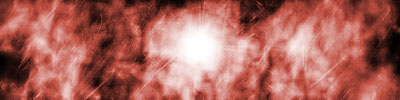
And in layer 2 ( the lowest layer ) you can use these settings :
Hue : 31
Saturation : 50 ( don't use Lightness )
After you done that you put the Blending Change Mode on : Soft Light
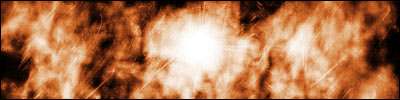
Well this is my final result :
I hope you guys and girls like it.
