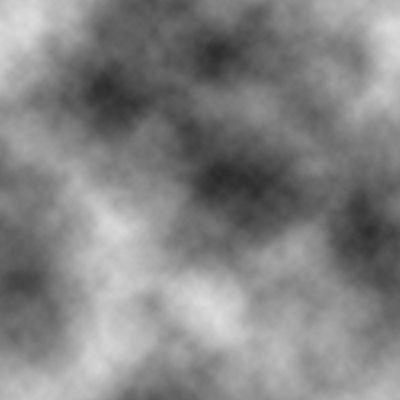
Step 1 Create a new image, 500x500 pixels will be fine. Press D for default colors
 . Go to Filters>Render>Clouds.
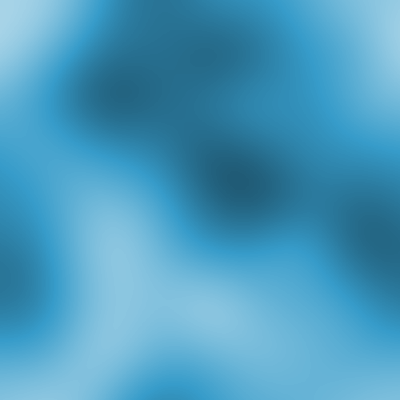
Step 2 Now go to Filter>Blur>Guassian Blur. Use about 30 for the settings to give it a real smooth blur.
Step 3 Now press CTRL-U to bring up the hue/saturation menu. Adjust the top slider to pick the color you want, the middle slider to pick how intense you want that color, and the bottom slider for light and dark.
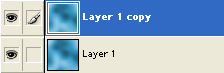
Step 4 Now duplicate the layer (go to Layer>Duplicate Layer to accomplish this) and click on the new top layer to select it.
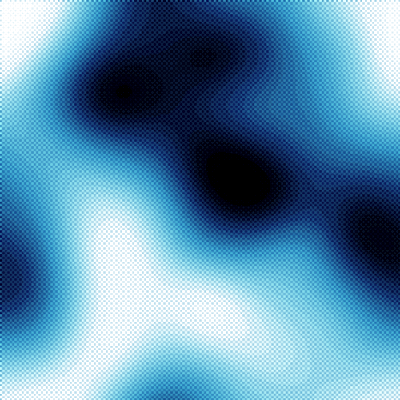
Step 5 Now go to Filter>Sketch>Halftone Pattern and use a size of about 1 and a contrast of 5.
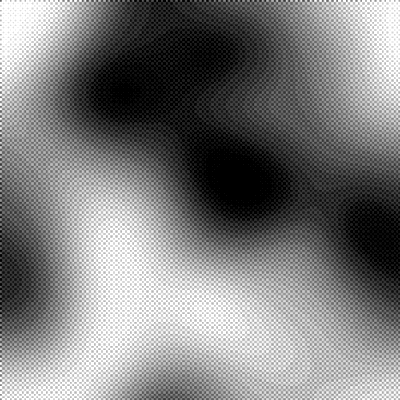
Step 6 The last step is to set the top layer to the Overlay blending mode. To do this, right click the top layer and choose Blending Modes from the drop down menu. In the window that pops up choose Overlay in the first drop down menu next to Blend Mode. That's all you need to do to get started, now you can add whatever you want to make it unique.