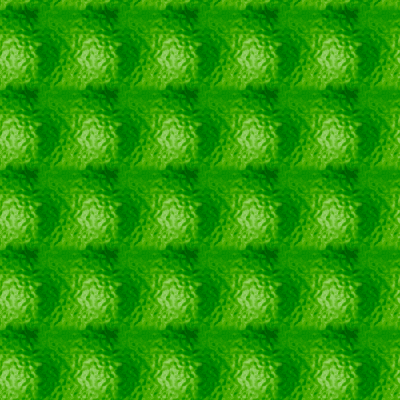
Step 1 We're going to create a seamless, tileable background. This can be done with any existing graphic, but since we are very creative people, we're going to make our own in a few quick steps.
Step 2 First make a 100X100 image and press D for default colors, then use the filters>render>clouds filter.
Step 3 Now pick anything that makes a non-repetitive pattern. I'm going to use a simple glass filter. Adjust settings to taste.
Step 4 Now press ctrl-U to colorize and adjust to whatever color you want. I chose a green color. You can even duplicate the layer and set the blending mode for extra oomph. I used linear dodge.
Step 5 Go ahead and flatten the image with layer>flatten image. Now we have a good beginning point for a tileable background. If you notice, the background does not tile nicely as-is.
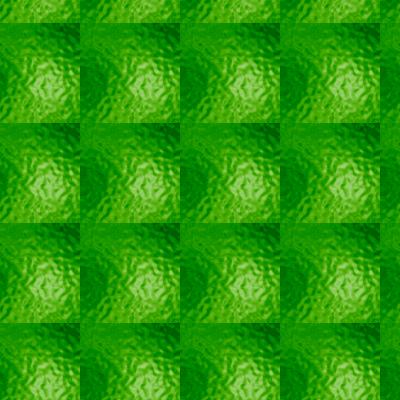
Step 6 It's time to fix that. Go to filter>other>offset and we'll offset the image. For the horizontal, choose half the width of your image. For the vertical, choose half the height of your image. Our image was 100X100 so we'll use 50 for both of the values. Make sure wrap-around is checked.
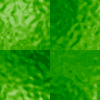
Step 7 This part may require a little trial and error, but it's actually pretty easy. Just zoom in on the image and take the smudge tool and start to smooth out the seams. Here you can see I've smoothed out the left-hand side, but not the top, bottom, or right. The important part is to make sure you can't see the line that was previously there.
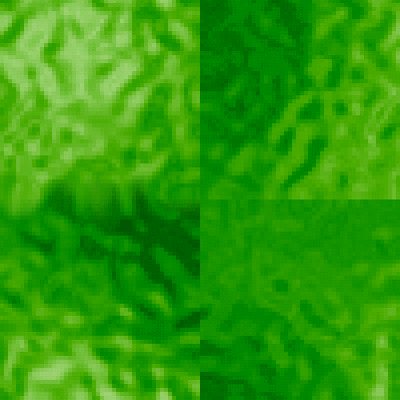
Step 8 Continue smoothing it out with the smudge tool until the lines are no longer visible. You can also experiment with the blur tool, but I tend to have less noticeable results with the smudge tool.
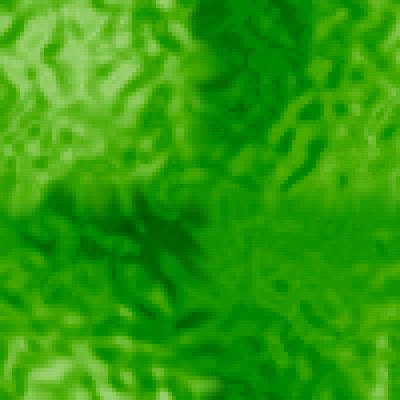
Step 9 Now the image tiles much nicer! With a little practice you can make seamless image tiles in no time.