

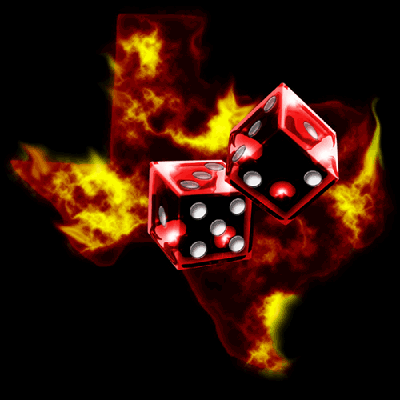
Step 1 First, take your large picture and open it up in Photoshop. I chose this one because it's much larger than 40X40 and should give you a decent idea of how to do this with any graphic.
Step 2 Next, resize the image to the smallest you can where you can still make out what the image is. Go to Image>Resize to resize the image. 40X40 was too small for this image because you could not tell what it was. I used 100X100.
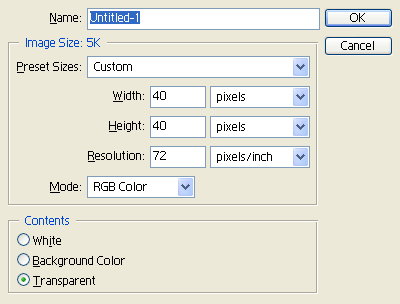
Step 3 Now go to File>New to create a new 40X40 image. 72 resolution will be good enough.
Step 4 Now drag the original image into the new 40X40 image you created. Before you can drag, you need to make sure your image is RGB by clicking Image>Mode>RGB Color if it is not already.
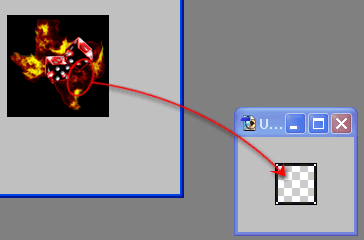
Step 5 Now, move the new layer around until you get a good idea of what the original picture was. It doesn't have to show everything, just enough to give someone a taste of what the original picture is. I chose to show some of the dice, and some of the fire.

Step 6 Now you want to make sure the file size is as small as possible. To do this, go to File>Save for Web. A box will pop up. Be sure to select JPEG as the type, and adjust the quality settings so that you have the lowest quality where the image still looks good. Medium happened to be fine for this image.
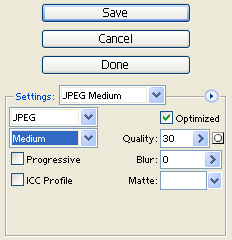
Step 7 Once you click Save it will ask you for a filename and then save it where you want. That's it! Generally I will add a 1 pixel black stroke around the thumbnail to spice it up a bit. Now you should be good to go!

