

Okay, I went over the picture limit again....
1. Make a new document, 400 x 400
2. Color the background black
3. Use any color you like, and change the brush to a 65 airbrush. Write HI.

4. Filter> Blur> Radial Blur with these settings: Amount: 100, Zoom, Best
5. Filter> Distort> Twirl, and twirl it 150
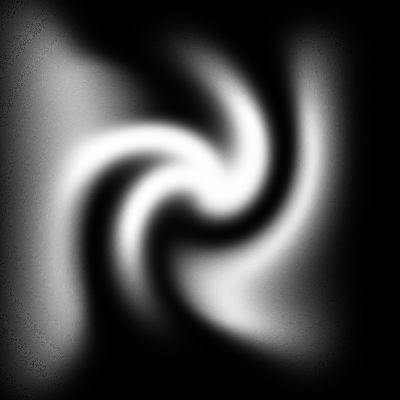
6. Filter> Distort> Ocean Ripple with these settings: Ripple Size: 9, Ripple Magnitude: 9
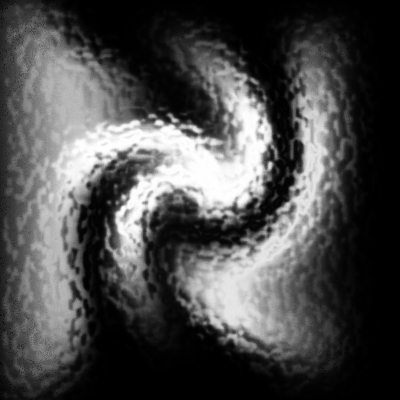
7. Filter> Distort> Wave with default settings, but click Square.
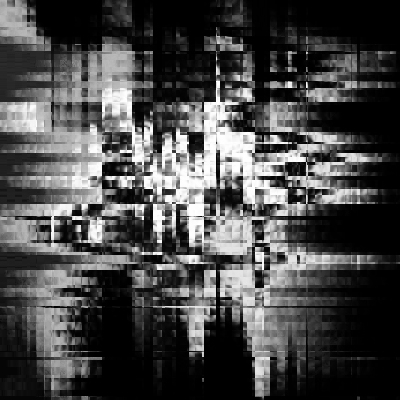
8. Filter> Distort> Polar Coordinates, Rectangular to Polar
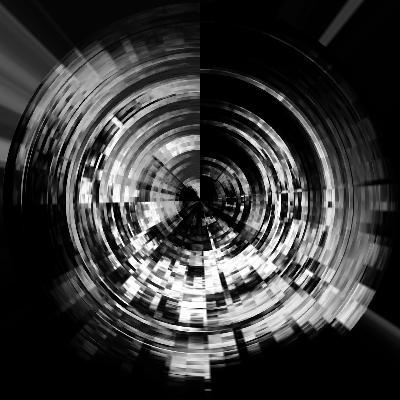
9. Filter> Blur> Radial Blur with these settings: Amount: 100, Zoom, Best
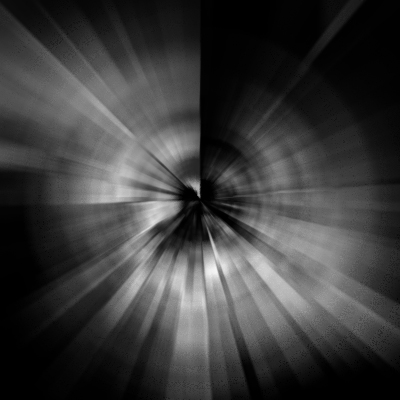
10. Filter> Distort> Polar Coordinates, Rectangular to Polar
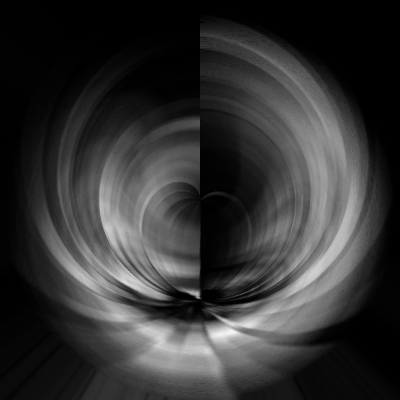
11. Usually there's a half that looks cooler than the other. I chose the half on the right.
Instructions for if you like the right half better:
12. Use the rectangular marquee tool to select the left half. Make it as perfect as you can.
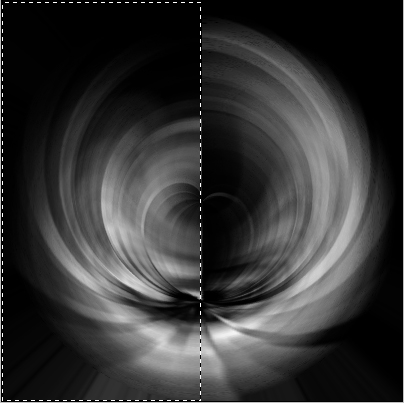
13. Press delete. Press Ctrl+D to deselect the deleted part.
14. Press Ctrl+J to copy the layer.
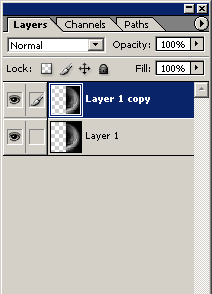
15. Press Ctrl+T to free transform. Right click, and press Flip Horizontal.
It should look something like this:
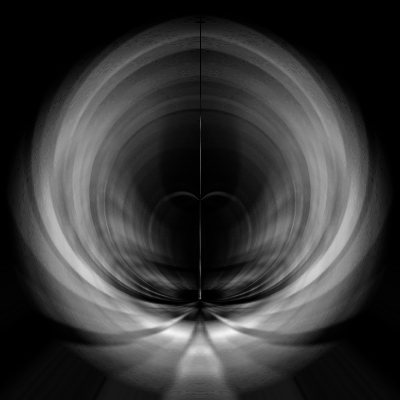
Instructions for if you like the left half better:
12. Use the rectangular marquee tool to select the right half. Make it as perfect as you can.
13. Press delete. Press Ctrl+D to deselect the deleted part.
14. Press Ctrl+J to copy the layer.
15. Press Ctrl+T to free transform. Right click, and press Flip Horizontal.
.... Steps 12-15 were like, the same, but I split them up for maximum.... understanding.
And now you're done! You can see the crack in between because I didn't delete the other half well, but if you delete it with ultra-perfectness, there won't be that black crack in the middle.
End result (I was too lazy to multi-color it... so it's all one color):
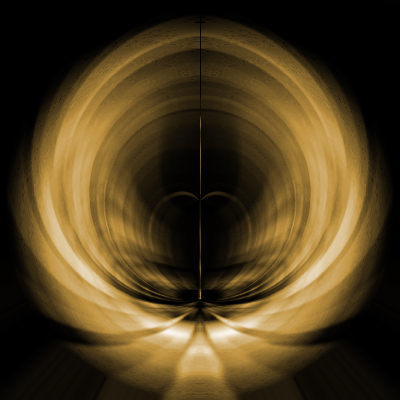
Add some text, a picture, mess around with the Hue/Saturation. It looks feathery.... kind of. Not really. I'm just crazy. Hope you liked this tutorial.
