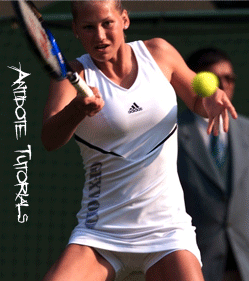
Ok...Some of you might be saying:"I already know how to place text on a surface, come on this is for noobs..." Reality is, can you place text on a t-shirt and make it look like that person is wearing a shirt that says whatever you want? That's what we are going to learn in this tutorial. First find the picture that you want to use... I will use this celebrity:

Alright first step is to duplicate the layer and set it to black and white by going to Image-Adjustments-Desturate, it will look something like this:

However this is not enough so we shall use threshold, Image-Adjustments-Threshold and play with the settings until you find something that has a good contrast. Here is what I got so far:
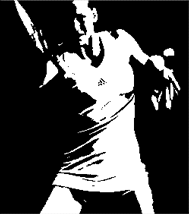
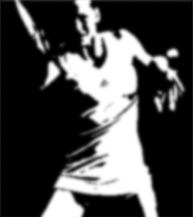
Ok after you have done that go ahead and blur it so that it has nice soft edges, then save it as a psd which we will use as a displacement map in a little bit, here is what I saved as my psd:
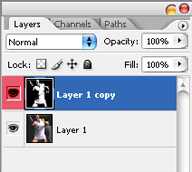
Now hide the black and white layer, here is what your layers should look like and which layer should be hidden:
Start adding your text to the photo, select your style, font, size and placement and do so. Here is that I got so far:

Now lets adjust the text, angle and color matching your photograph, I also skewed the text because it gives a more realistic look, here is what I have so far:

Ok, now go to Filter-Distort-Displace and use the following settings: Horizontal 1, Vertical 2, Stretch to Fit and Repeated Edge Pixels must be selected. After doing that if will ask you to choose a displacement map, now just select your psd and click ok, should look about right but you need to set the layer to soft light so that it looks best.
Ok, here is my final result and you are done. I hope that this will help you play pranks on your friend.