

1. Ok first Open a new Document 400*400 The background can be White or Transparent
2. Then put the text do you want In White <-- It have to be White!!
3. Then Rasterize Layer: Layer > Rasterize > Type..
4. Next go to Layer > Layer Style > Blending Options
And use the next presets:
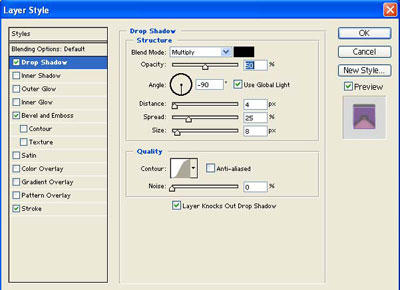
Click to enlarge
Use the colors of Highlight mode and Shadow mode the same as your background, or colors you want, they don't have to be the same
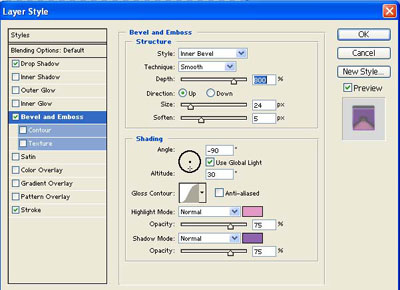
Click to enlarge
Use the same colors you have used before for the Gradient in the Stroke
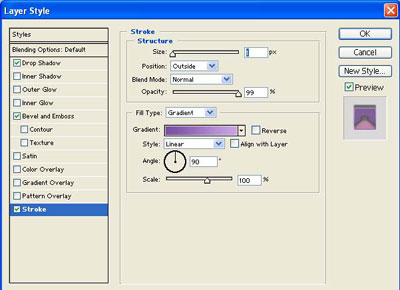
Click to enlarge
Then Is finished. I use Fontdiner.com Loungy <-- you can download it in: dafont.com

This is a final Result with an Image and Background:

Click to enlarge

Click to enlarge
