


1. Make a sig (or take one you want to make good)

2. Make a text layer, type in the text you want (leave it black or whatever color for now)

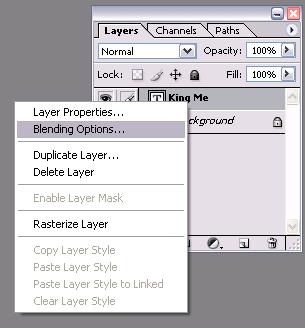
3. Go into blending options, turn on Drop Shadow, Bevel and Emboss(Contour), and Stroke
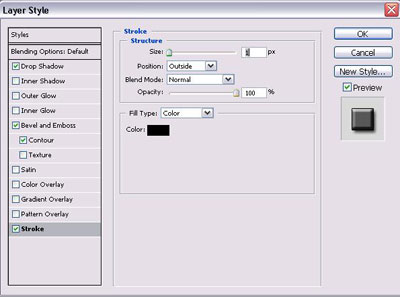
3a. Leave Drop Shadow and Bevel and Emboss. Go to stroke, and change it to 3 pixels, and turn it from red to black

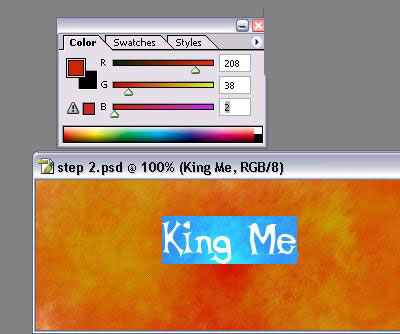
4. Now take the turkey vaster (color picker) tool, and click to most common color on your sig.

4a. Now reselect your text layer so you can edit the color
4b. highlight your text and in the color panel change one of the numbers and then change it back so its the color you picked
5. Now move it to where you want it and your good to go!

Now just add a boarder and whatever else you do to make a cool signature.
