


Let's create a 3d bar that we usually see around a lot on the websites. These eye candy bars make any interface look cool. First let's have a look at what we are going to create.

Step 1: Start a new document of width:400 pix and height 80 pix
Step 2: Click on the rounded rectangle tool
 and draw this shape.

You can preselect the colour of your choice. Note this Rounded rectangle acts as a vector. So you can't perform much actions on it. Here we have selected this rounded rectangle just for it's shape.
Step 3: Now press control+left click on the layer
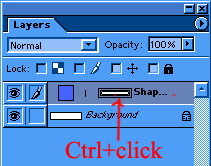
Make a new layer and delete this layer so u will have it like this
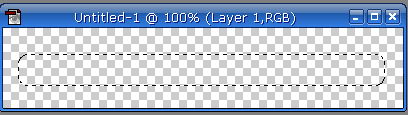
Now fill the selection with the bucket i chose #1E63FF this colour.
Step 4: Let's add some inner glow to it. to apply it go to: Layer>layer style> Inner Glow and add these settings
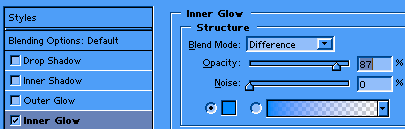
Our image will look like this

Step 5: Time to add the glow to it. Create another new layer and click on the Gradient Fill and select the followin gradient

Now select the Eleptical Marquee tool and draw an elipse like this

After that select the rectangle marquee tool and press alt and draw a box just above the top portion of the drawn esclipse so that portion is deselected and we get something like this
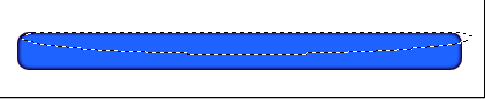
Now click on the gradient tool and fill it from top to bottom like this
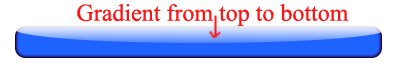
Now add some gradient at the bottom too and fill it with back and we are done. This is the final image that we get.
