

Note: This tutorial was done using Adobe Photoshop 7.0
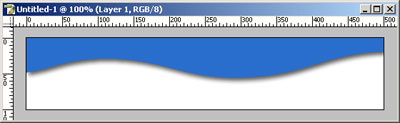
There is always a way to make things in Photoshop, this tutorial will teach you how to make a smooth wavy selection, also it will teach you how to make any selection with rough corners smoother. Normally if you want to make a wave and if you don't know how best to do it, you would try to do it with
 Elliptical Marquee Tool, which would not bring a desired result.
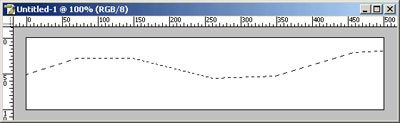
1. First Open a new window with 500 x 100 size filled with white. Select the Polygonal Lasso Tool (L)
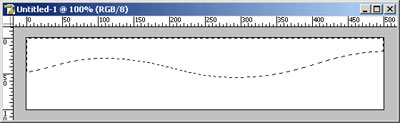
 and try to make a selection similar to the one below.
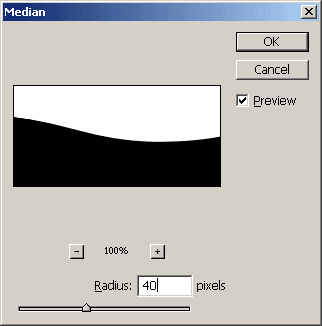
2. Next press Q for Quick Mask, while in Quick Mask mode go to Filter > Noise > Median and enter an amount in the Radius field that is just enough to make the selection smooth (I have entered 40) - press OK once you are satisfied with the smoothness of the curve.
3. By now your image should look like this.
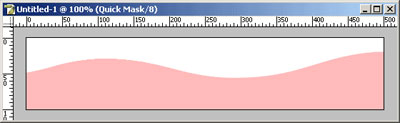
4. Now press Q again to revert back Quick Mask to a normal selection mode. Create a new layer and fill the selection with your desired color. And deselect the image.
5. This is how it looks when it is filled with blue and applied some shadow on it.
