1. Open a new window with:
Width:120pixels Height:120pixels
Resolution: 72 pixels/inch
Mode: RGB color Contents:White

2. Draw something in the middle.

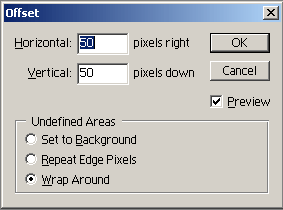
Go to Filter > Other > Offset and make selection as shown below
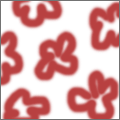
3. By now your image should look like this.

4. Draw some more flower or whatever you were drawing in the empty place in the middle. This is it. See this image as a background in this page.
5. You might say, why I have to do it difficult way, following all these steps. You could just draw an image and put it as a background, but it does not always work. See what would happen if you do it that way.