1. First make a new canvas, I used 500*500 transparent, select the Gradient tool and use this settings:

2. Now make small lines from left to right like this:
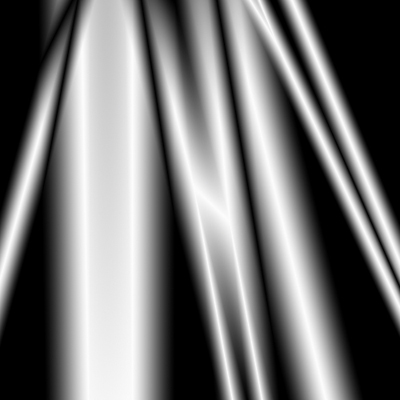
3. Repeat the same lines but from up to down like this:
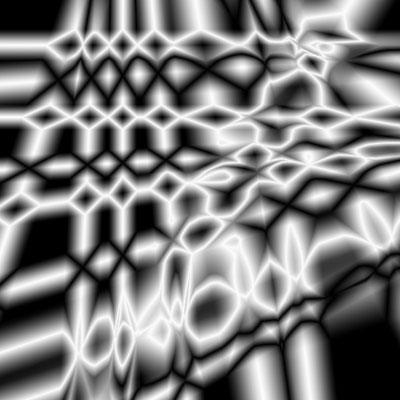
It's important to do it my way, otherwise you get an different effect
4. Press 'Ctrl + U' to open the hue/saturation dialog, use different settings to get blue color:
5. Now go to 'Filter' > 'Distort' > 'Wave' and use this settings:
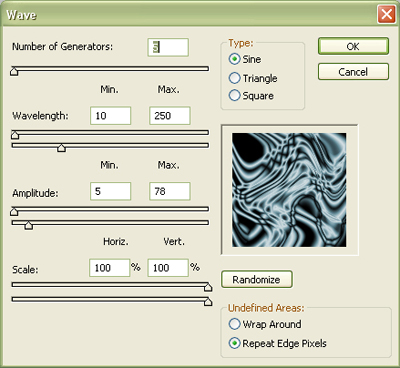
and press a few times on randomize (so your result can be different to mine)
6. Now press Ctrl + J to duplicate the layer.. go to 'Edit' > 'Transform' > 'Rotate 90 CW' and change the blending mode to 'screen'.
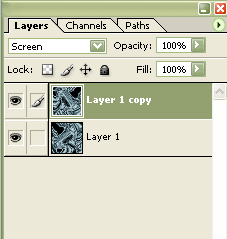
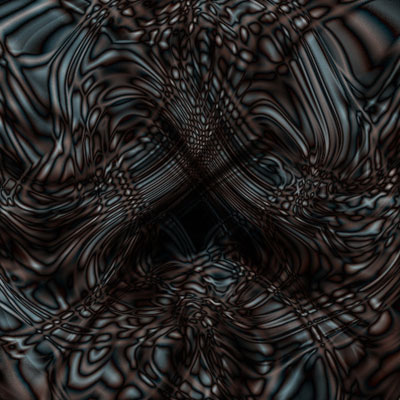
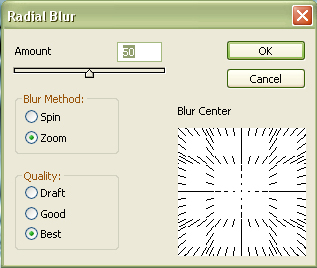
7. Press 'Ctrl + E' to merge the layers and now we need to duplicate it again, so press 'CTRL + J' and finally go to 'Filter' > 'Blur' > 'Radial Blur' and use the following values:
8. Now set our blending mode to difference and we are done. :)