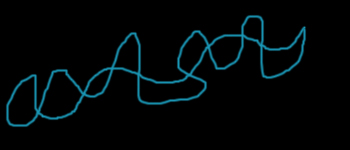
1. Ok create an image with a black background then select a nice color blue then paintbrush size 3 i find any other size doesn't work as well. Paint some curvy lines etc.. like in the example.
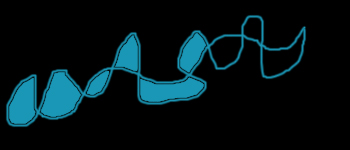
2. Fill in the gaps if you leave some blank it can give a better effect that's why i left the three at the end empty you can leave more empty if you like.
3. Motion Blur the Layer the drawing is on i blurred mine by 35 but its up to you to choose what looks best now you can see the effect is 75% done!
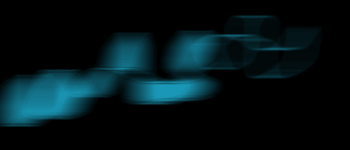
4. Duplicate the layer of the motion blurred drawing then change that layer blending mode to Color Dodge and you are done!!
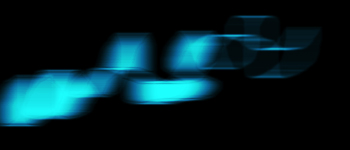
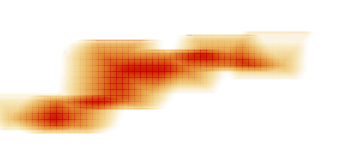
5. If you do this effect on a white background use an orange color and set the Blending Mode too Color Burn this is just a example on a white background using a pattern on it.