

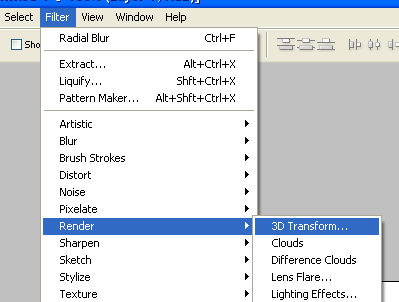
1. In the beginning Click on Filter > Render > 3D transform
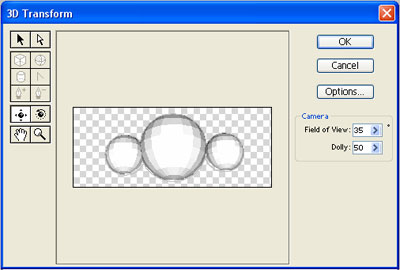
2. Add three balls like so..
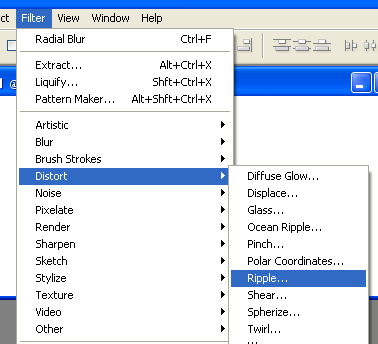
3. Now click on Filter > Distort > Ripple
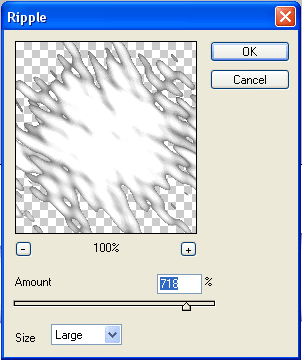
4. Change the settings to: (amount: 718% - size: large)
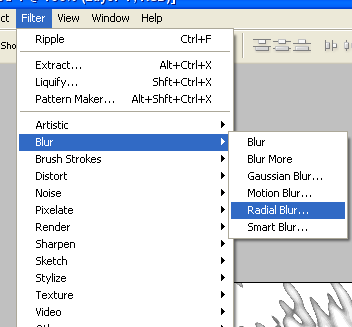
5. Click Filter > Blur > Radial Blur
6. Set the (Amount to: 72 - Blur Method: Zoom - Quality: Good)
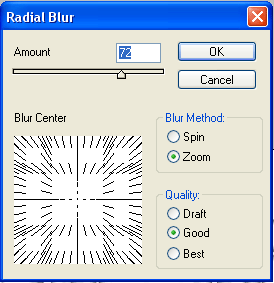
7. Click on the ‘ok’ button, you will get it like below:
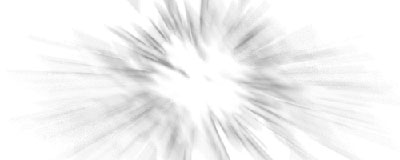
Click to enlarge
8. Now its without color, lets add some color - click on image > adjustments > color balance
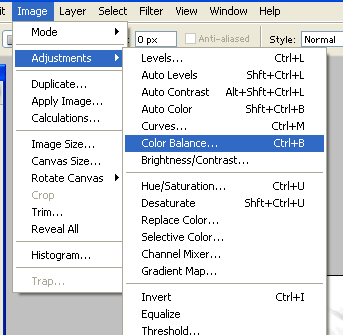
9. Select the Midtones first and use these colors:
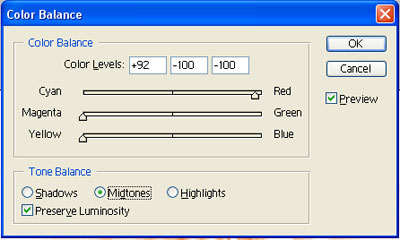
10. Now Highlights
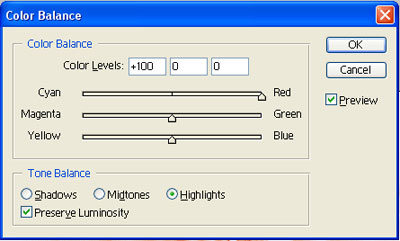
11. And at last Shadows
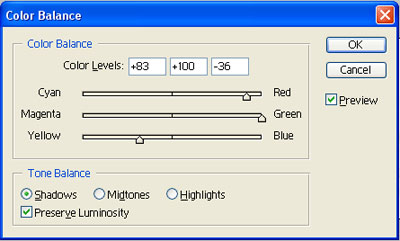
12. Click on the OK, now press ( CTRL + F ) and you final result:
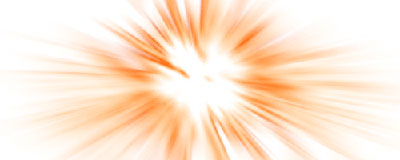
Click to enlarge
