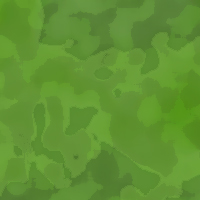
1. Open a new document, and change both the foreground and background palettes to (#769C5A and #4B8021).
2. Click filters > clouds, hold ctrl and press F. keep doing this step until you get a good mix of green - like the sample below:

3. Filters > artistic > sponge and make set the follow: (brush size: 10 - definition: 9/10 - smoothness 15) then hit OK.
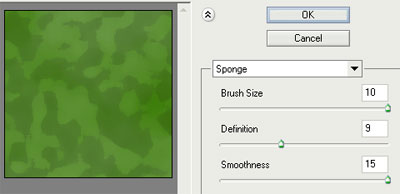
4. Make a new layer above the current one, and set the foreground color to #77BA38
5. Make sure the bottom layer is selected, click the magic wand tool somewhere on the current pattern to try and get something like (may require you clicking around on the pattern little before you get a similar shape) :
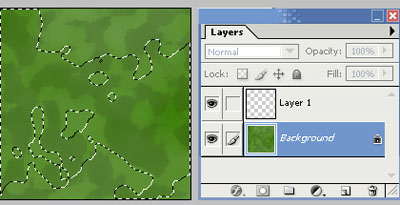
6. Now click the top layer, and using the shape you just made, right-click > fill > foreground color and hit enter.
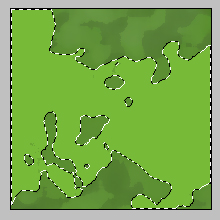
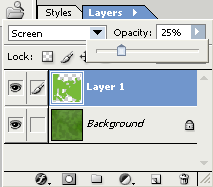
7. Now using the layer tool on the top layer, use 'screen' and decrease the opacity too 25%
8. Your end result shall look something like: