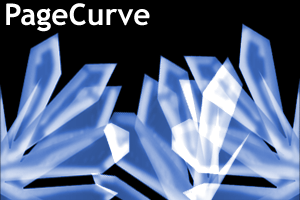
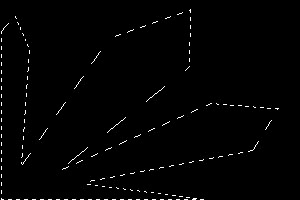
1. Open a new picture (any size) and fill the background black. Use the Polygon lasso tool, to mark the basic form of the crystal.
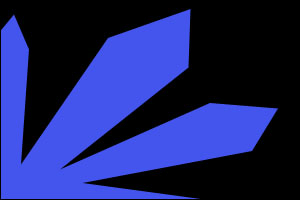
2. Provide a new level and fill you the selection with #445EE.
3. Use the "Filter" > "Sketch"Bas Relief" with the attitudes: Detail:1; Smoothness:4; Light:Top. Now to get back to our original color: press 'ctrl + u' and change the values to:
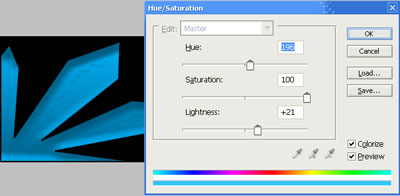
4. Duplicate the layer and now set both of the crystal layers opacity to: 70% then rotate one of the layers a little to get this: (also you will need to merge both crystal layers - press 'CTRL & E').
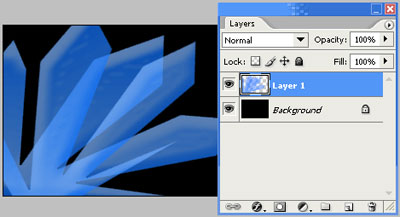
5. Create a new layer and select the airbrush tool, carefully go around the edges of our crystal layer .. then change the mode to 'overlay' you should be left with something along the lines of: (again, but this time we merge every layer together, (CTRL + E) until all layers are merged to one).
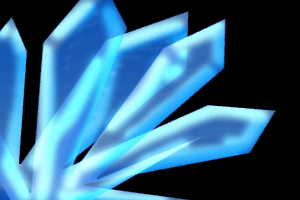
6. Duplicating, Resizing, Coloring .. i managed to create these two effects: