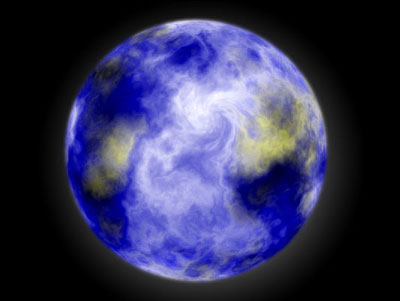
1. Create a new image 800 x 800, color pure black
2. Create a new layer above it, name it planet
3. Select the elliptical marquee tool, hold down shift and drag out a perfect circle, leaving about 50-60 pixels open on all sides of the circle
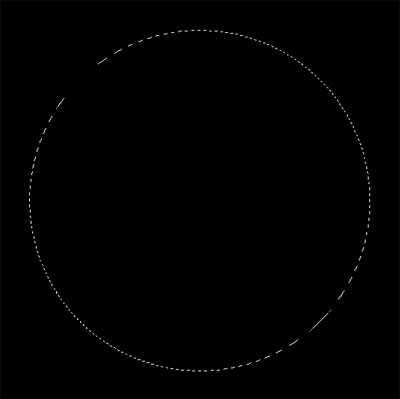
4. Fill the circle with white - do NOT deselect
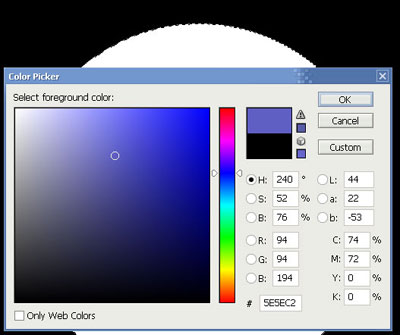
5. Change your foreground color to 94,94,198. Background color pure white. NOTE: the color used for the foreground is very important to the formation of your land masses. If the color is too blue they will be pink instead of brownish.
6. While holding down the shift key choose filter -> render -> clouds
7. While holding down the shift key choose filter -> render -> difference clouds
8. Hit ctrl (cmd) F to re-apply the last filter - the blue / white pattern returns
9. Repeat step 8 as many times as required until you have a nice "cloud" pattern, along with some nice land masses (it can take up to 15-20 times to get a nice one)
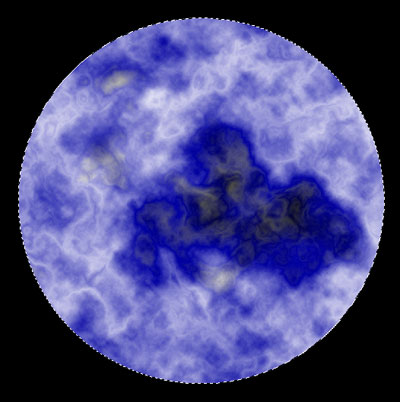
10. Once you have a nice looking pattern deselect your "planet". Find a nice clumpy cloud pattern & draw a round selection around it, almost to its edges. (HINT: if you can find a nice "clump" near the edge grab it, but make sure you are NOT selecting outside of the planet. This gives a really nice effect later)
11. With the selection intact choose filter -> liquify
12. Using a brush size that is slightly smaller than the selection area and a brush pressure of NO more than 50% (40% is ideal) choose the twirl CCW feature and gently twirl the cloud formation (DONT get too crazy here or it wont look real)
13. Repeat steps 10 -12 if you'd like on a separate "cloud formation"
14. You may also "twirl" a few clouds W/O a selection to add some roundness to the formations. Purely optional though.
15. Once you have all the clouds you would like hit ctrl (cmd) D to make sure everything is deselected.
16. Making sure you have your planet layer selected (ctrl click the layer) choose filter -> distort -> spherize with an amount of 100% and normal mode
17. Starting to look like something! OK we need to add that slight haze earth always has. Deselect your plant and create a new layer behind your planet layer, name it glow.
18. Set your foreground color to white, choose the gradient tool, click the radial gradient option, click the gradient drop down & choose foreground to transparent. Drag a gradient out from the middle of your glow layer to about 3/4 of the way to the edge of the canvas. We only want a slight glow to protrude past the planet edges so try it one or twice to get it right, hiding the planet layer as needed. It takes a little bit to get it right.
19. OK lets attack these edges and make this thing look REAL. Ctrl click your planet layer to select the planet. Choose select -> modify -> contract and input 3 pixels then choose select -> modify -> feather and enter 2 pixels. Then choose select -> inverse (shift-ctrl(cmd)-I). Now make sure your planet layer is the active layer and choose filter -> blur -> gaussian blur and enter an amount of 3. Click OK.
20. Looking COOL! Now the final adjustment will crispen up the colors a tad. First merge your glow and planet layer (ctrl (cmd) E) then choose image -> adjustments -> levels Make sure you are on the RGB level and drag the bottom slider (shadows) up ever so slightly. Drag the center slider (midtones) up a hair also & the top slider (highlights) down just to "perk up" the clouds and make them look fluffy.