1. Open up a 500x500 white document, make the background color of the document black
2. Create a new layer and then select the " Rectangular Marquee Tool " and select a rectangle around this size
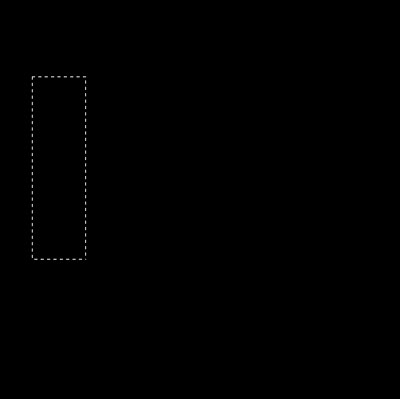
3. Now color the rectangle white and select the Gradient Tool and press "Q" for Quick Mask and a red gradient soon appear on your screen. Click and hold from the top all the way to the bottom then press "Q" again and hit the delete key one or two times.

4. Now press CTRL + T to transform it, and move it so the top part is facing to the top right corner like this. ( Be sure not to show the top right edge of the rectangle )
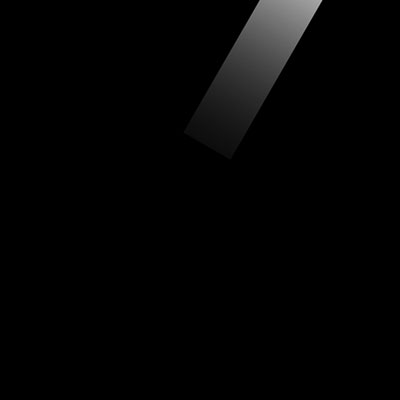
5. Now select the " Elliptical Marquee Tool " and create a perfect circle like this ( Hold SHIFT and drag to make a perfect circle )
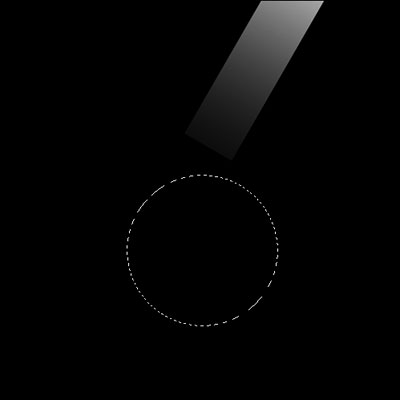
Select -> Feather and choose Feather Radius "20" pixels and hit OK
Now move your circle around and erase some of the edges of the rectangle

6. Create a new layer and select the " Elliptical Marquee Tool " and create an oval underneath the rectangle
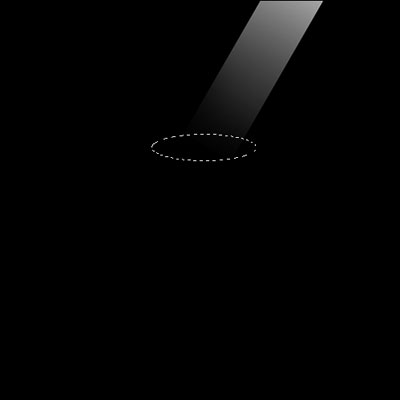
Select -> Feather and choose Feather Radius "5" pixels and hit OK - Now fill in the oval with white.
Change the opacity of the layer to 30% or 50%
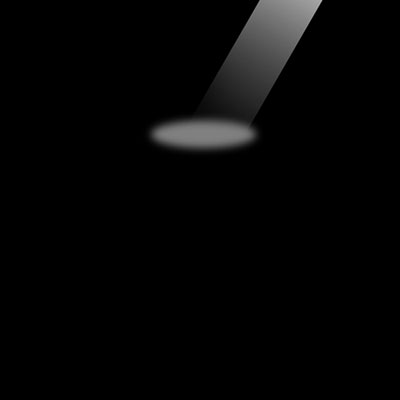
7. Now add an object in the center of the spotlight, anything will do. I chose to write a "?"