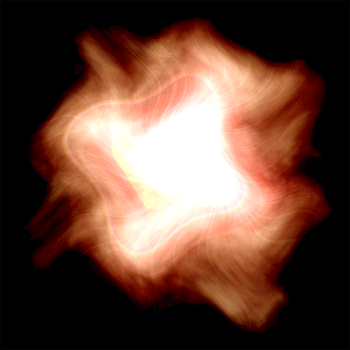
1. Open up a 500x500 white document and then color the background BLACK
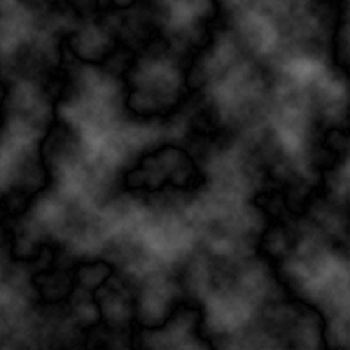
2. Filter -> Render -> Clouds and then Filter -> Render -> Difference Clouds
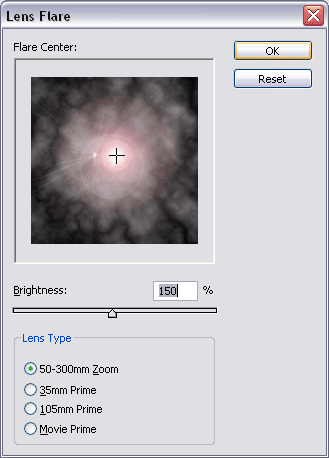
3. Filter -> Render -> Lens Flare ( Set the brightness to 150 and try to move the flare into the center of the clouds
4. This is the annoying part, select the burn tool ( See below ) - If its a different looking icon, right click on it and select Burn Tool

Now when you select it, use these settings on the top menu

Now burn some parts around the clouds so it looks like a circle like this
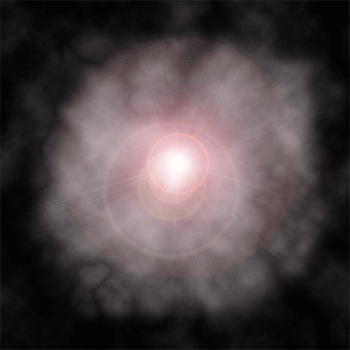
5. Filter -> Distort -> Wave and change ' Number of Generators ' to 1
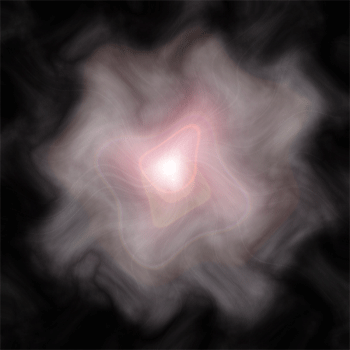
6. Now duplicate the layer by pressing CTRL + J and go to Edit -> Transform -> Rotate 90 CW and once that's done, change the duplicated blending layer into ' Linear Light '
Color it a bit, and you're done!