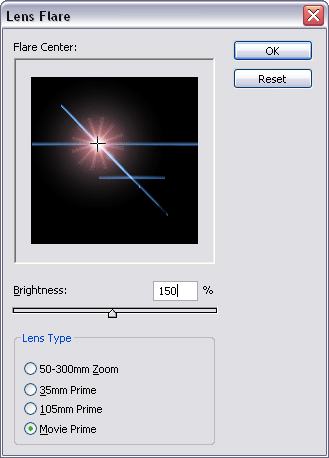
1. Open up a 500x500 white document - Make the background black and go to Filter -> Render -> Lens Flare and choose these settings
2. Filter -> Distort -> Wave and change ' Number of Generators ' to 1
3. CTRL + J to duplicate the layer and go to Filter -> Blur -> Gaussian Blur for 2 pixels and change the duplicated blending mode into overlay and CTRL + E to merge
4. Ctrl + J ( To duplicate the layer ) and then hold Ctrl + T and move your image around a bit and change the blending mode into screen. ( Make sure to move the duplicated layer in the center of the first layer )
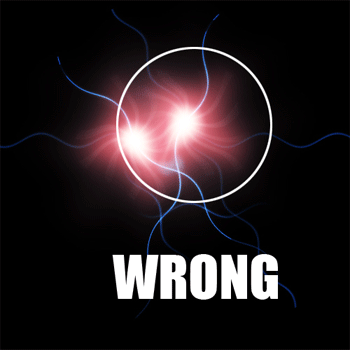
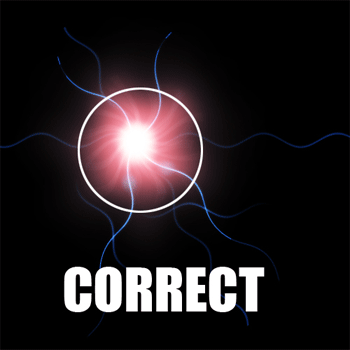
5. Merge the layers together and create a new layer, select black as your background color and press CTRL + BACKSPACE to fill the background BLACK
Now do the exact thing in Step 1 without opening up a new document
Once you're done creating the lens flare, re do Step 2 and Step 3
6. Merge the first two layers together, and leave the background layer alone. Change the layers blending mode into Exclusion and move the image right below of the background layer
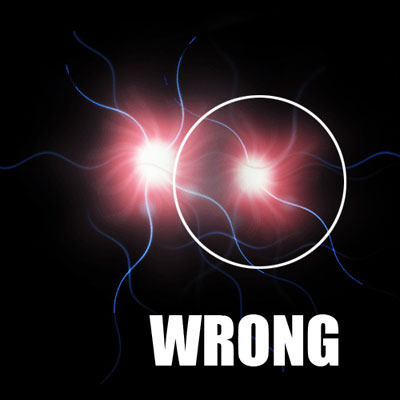
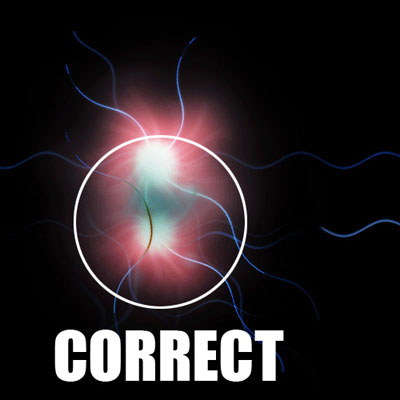
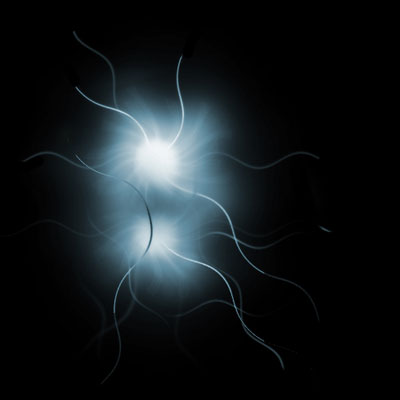
7. Merge all the layers together - Ctrl + U and select a color and this is what I came up with