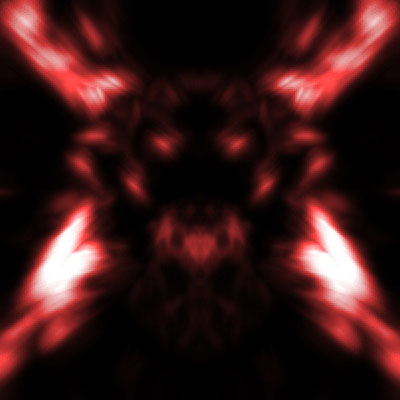
1. Open a 600x600 White document
2. Create a new layer
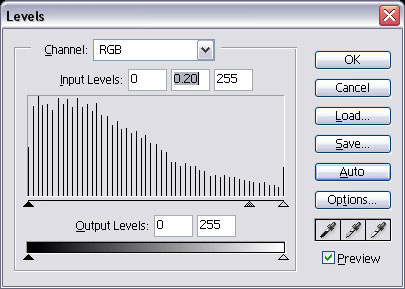
3. Filter -> Render -> Clouds and then Filter -> Render -> Difference Clouds and then CTRL + L and use these settings (Click Auto, then set the numbers to 0 - 0.20 - 255)
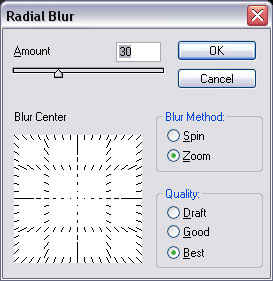
4. Filter -> Blur -> Radial Blur and choose these settings
5. Duplicate the layer by pressing CTRL + J and then click on your first layer and go to Filter -> Distort -> Twirl and use the default settings
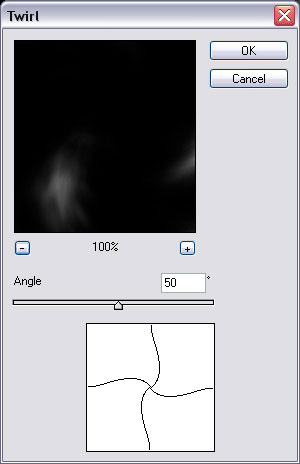
6. Now for the second layer, the layer you just duplicated do the same thing but with -50 (Twirl effect) and change the blending mode to Lighten, it should look something like this
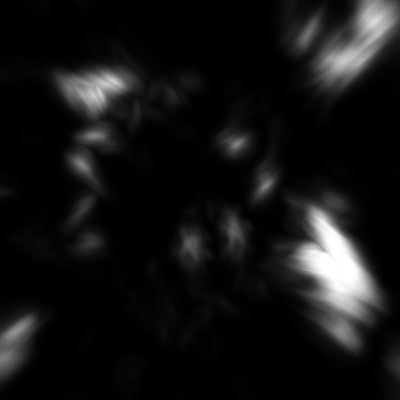
7. Ctrl + U and use these settings, or you can use different settings for different colors
8. Do the same for your first layer, you can keep the same color, or you can play with the lightness bar
9. If you want, you can merge both of the layers together, repeat Step 5 to 8 and you will have another design.
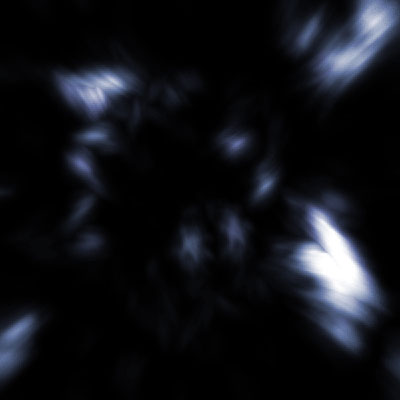
10. This is additional, it looks way better but I'm not sure you will get the perfect results but, merge both together, duplicate the layer and go to Edit -> Transform -> Horizontal and change the duplicated blending mode into Linear Dodge