

1. Objects > Primitive > Sphere.
2. Now download this file
3. On the materials palette choose File > Load Materials and load the file you downloaded.
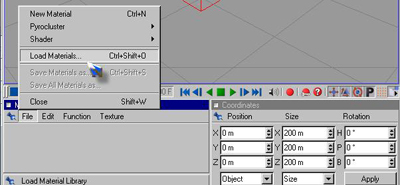
4. Now click and hold on the material and drag it onto the sphere.
5. Objects > Nurbs > HyperNurbs.
6. Now on the right click and hold on the word sphere and drag to the hypernurbs make sure the arrow is pinting down before releasing.
7. Objects > Scene > Target Light and position it like so...
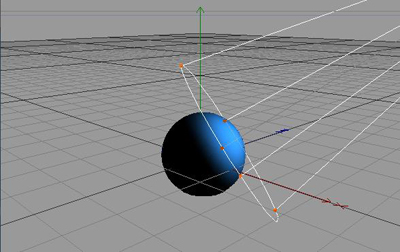
8. Repeat step 4 for the the light & light target.
9. Now go back to the materials palettes and select the blue mat the you downloaded, then on the same palette go to Texture > Texture Channels > Bump and use these settings
10. Now you should a brush, this is where you brush in what texture you want the surface to have so play around with it.
11. Now go to Render > Render Settings
12. Under Output make it any size you wish, than under Save use the following...
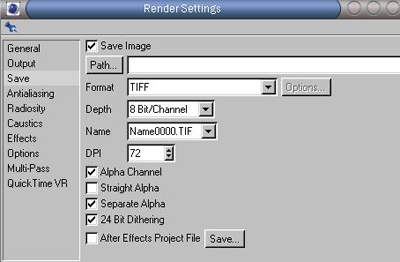
13. Render > Render to Picture Viewer
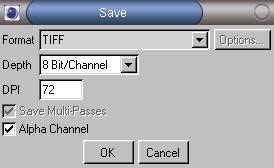
14. File > Save as
My Final:
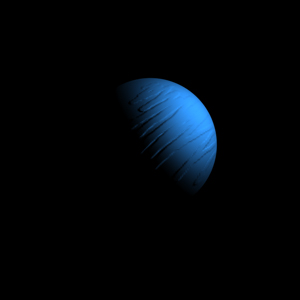
To have the moon a different color simply change the color of the material
