1. Open new document.
2. Type your text (any font should work)
3. Grab the gradient tool
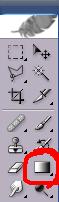
and use these settings

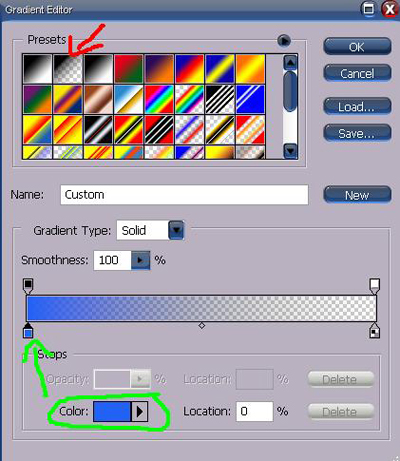
4. Now changing the color of the gradient stripe, click on the gradient colors

then click on the box the red arrow is pointing to, then click on the little box that the green arrow is pointing to, then change the color circled in green to whatever color you wish.
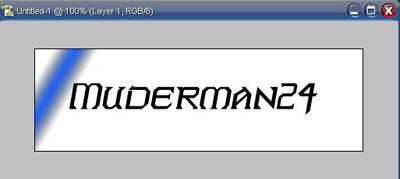
5. Make new layer above the text layer
6. Make a gradient stripe like this, making sure the stripe is not overlapping the text.
7. Hit Ctrl + G
8. Now jump to image ready Shift + Ctrl + M
9. Now before you do anything this is the time to add and text styles to the text, i will use the following.
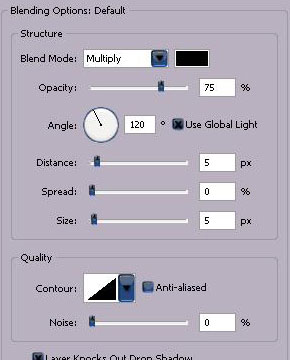
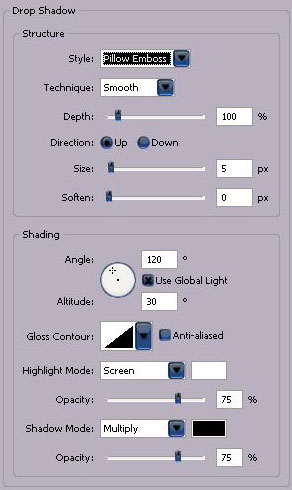
Also if you want the background changed do it at this point, simple select the background layer and fill with the color of your choice.
10. Now duplicate the frame.
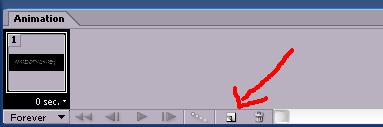
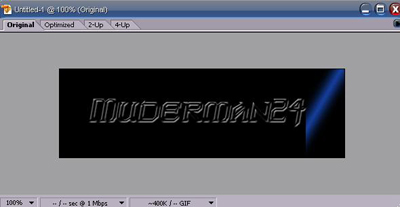
11. Now with the 2nd frame and the gradient stripe layer selected, hold Ctrl and drag the gradient stripe across the text to the other side, making sure it is once again not overlapping the text.
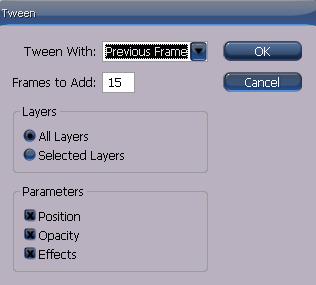
12. Now hit tween.
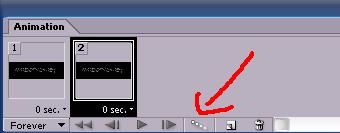
and use these settings
13. File save optimized as and your done
Example: