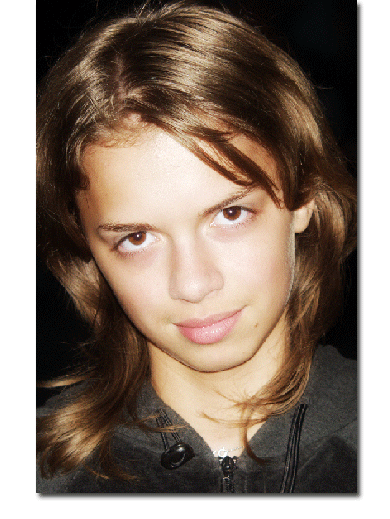
Open a photo at your choice. I will open the photo of the girl I used in a previous tutorial.
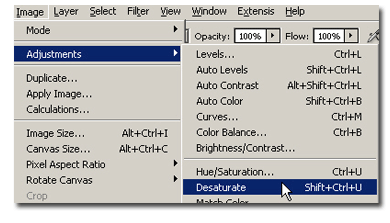
Hit CTRL+SHIFT+U to desaturate the image or go to Image> Adjustments>Desaturate.
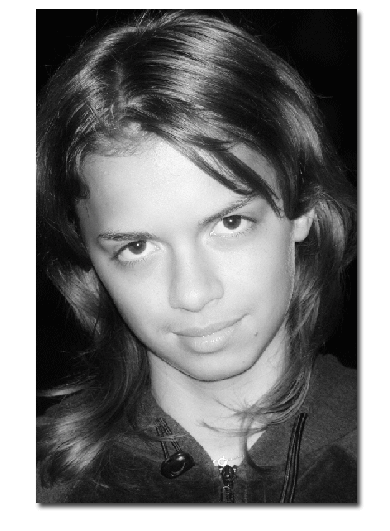
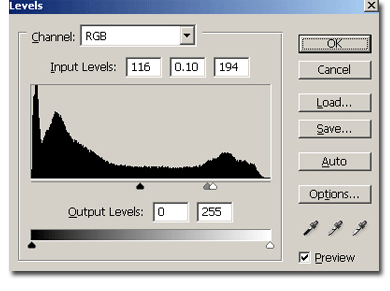
Now, hit Ctrl+L (Mac: Command+L) to adjust the levels; I used as input levels 116/0.10/194 as in the example.
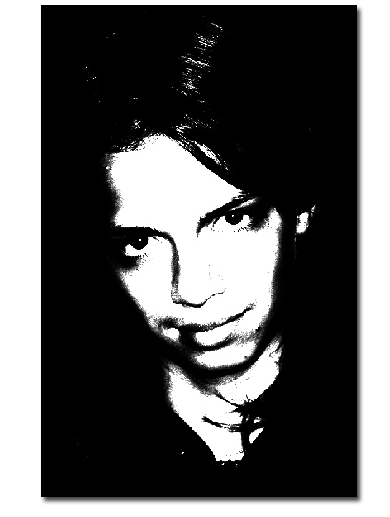
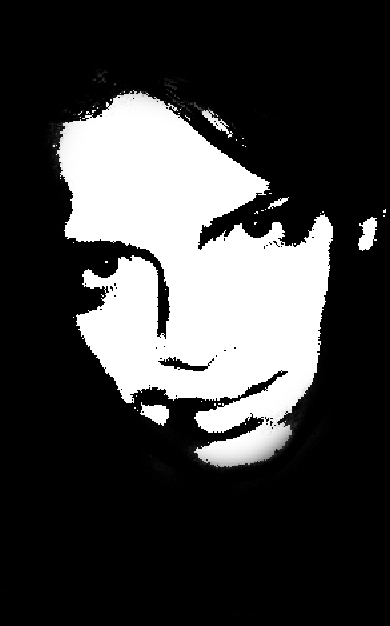
Now use the paintbrush tool to cover the neck and the hair that can be still visible. Here is my result:
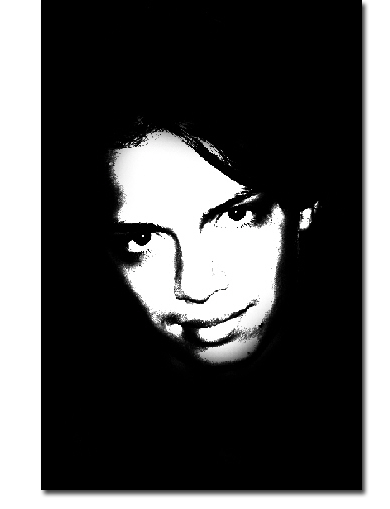
Now duplicate the layer, add a Blur>Gaussian blur of 3-4 (depends on the image resolution). Now put your duplicate layer on Hard Mix mode. Here it is: