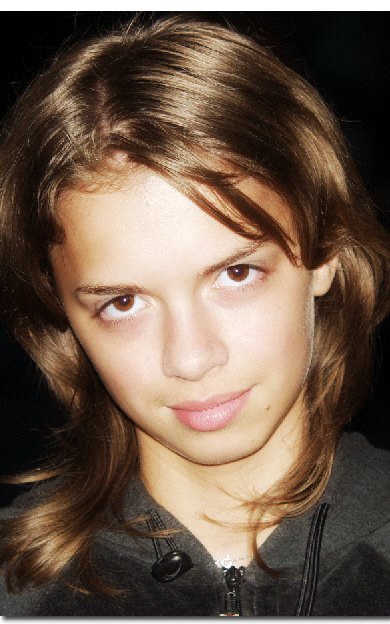
Open your image (a portrait image, because this tutorial is about softening skin of the model).
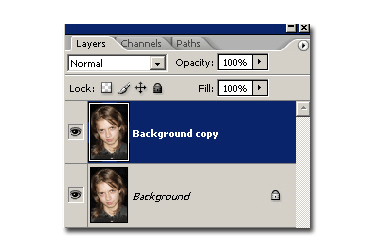
Duplicate layer. Your layer palette should look like this:
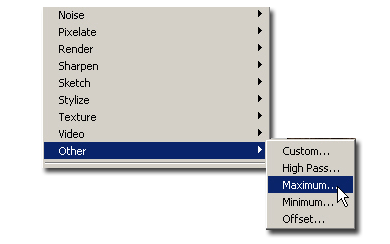
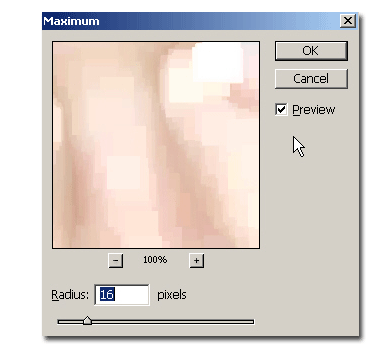
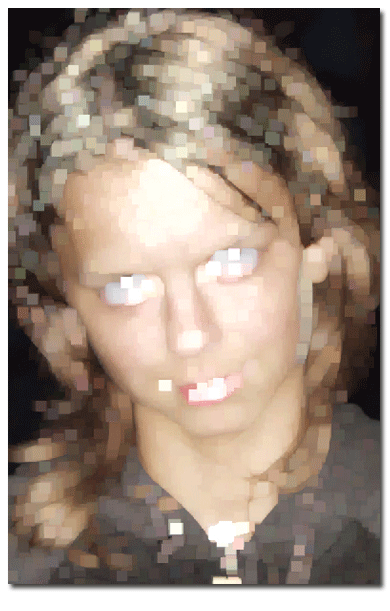
Now go to Filters>Others >Maximum. I put a 16 pixels value, but this is estimate. Your image should look like mine in the example:
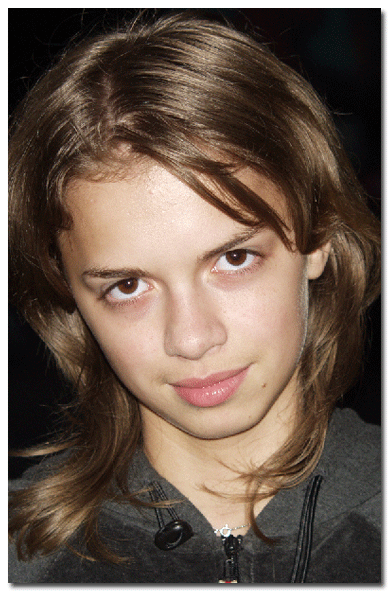
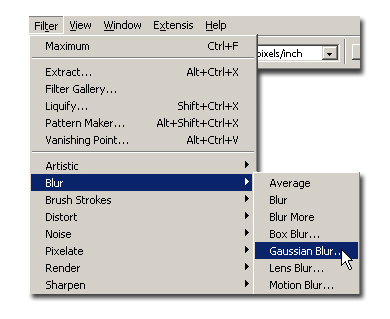
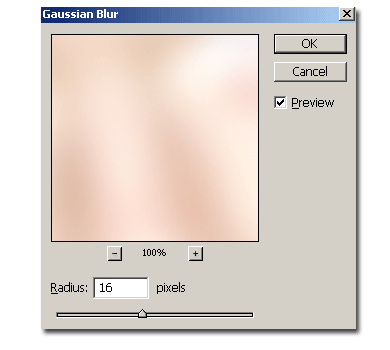
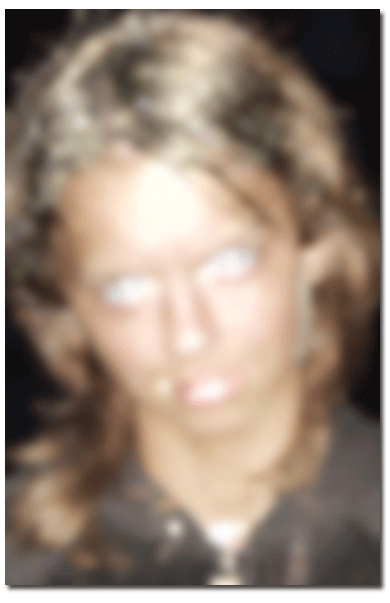
Now go to Filters>Blur>Gaussian blur and apply a value that fits your needs. Mine is 16 pixels. Your image should look like this:
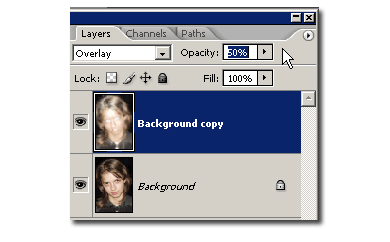
Now go to the layers palette and put the Background copy layer, the one on you have worked so far (I hope), on Overlay mode and set the opacity to 50% more or less).